
Billing & Plans
JetStack AI offers three pricing tiers designed for HubSpot Solutions Partners at different scales. Your plan determines portal limits, feature access, and usage quotas. This page covers how to view your current plan, compare tiers, upgrade or downgrade, and access billing history.
Accessing Billing Settings
Section titled “Accessing Billing Settings”Navigate to Settings > Billing from the left sidebar. Only the organization Owner can view and manage billing settings. Admins and Members do not have access to the billing page.
Current Plan
Section titled “Current Plan”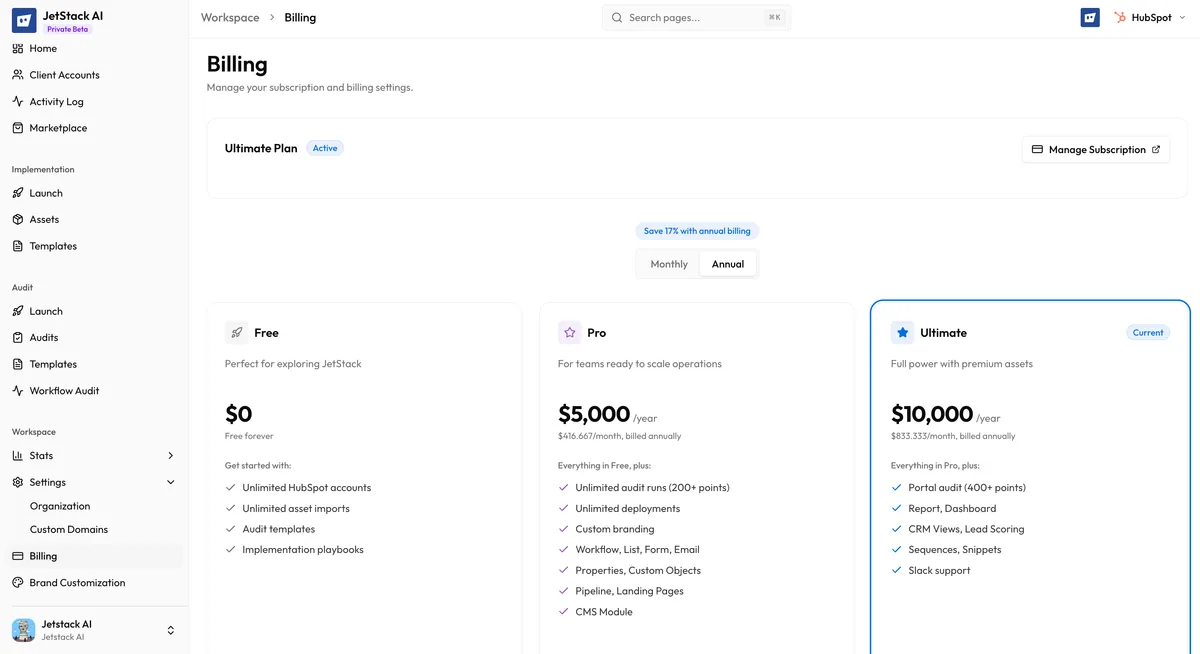
The billing page displays your active plan prominently at the top:
- Plan name — Pro, Ultimate, or Custom
- Billing cycle — Monthly or annual
- Next billing date — When the next payment will be charged
- Monthly/annual cost — Current subscription amount
Plan Comparison
Section titled “Plan Comparison”The three JetStack AI tiers differ in portal capacity, feature access, and support levels:
| Feature | Pro | Ultimate | Custom |
|---|---|---|---|
| Client accounts | Up to 3 | Up to 10 | Unlimited |
| Imports per month | 50 | Unlimited | Unlimited |
| Deployments per month | 25 | Unlimited | Unlimited |
| Audits per month | 10 | Unlimited | Unlimited |
| Asset library | Included | Included | Included |
| Bulk property creation | Included | Included | Included |
| Custom audit templates | — | Included | Included |
| AI Insights | — | Included | Included |
| Custom domains | — | Included | Included |
| Workflow audits | — | Included | Included |
| Marketplace access | Browse only | Full access | Full access |
| Reporting assets | — | Included | Included |
| Priority support | — | — | Included |
| Dedicated CSM | — | — | Included |
| Custom integrations | — | — | Available |
Pro Plan
Section titled “Pro Plan”The Pro plan is designed for smaller agencies or individual consultants working with a few client portals. It includes all core implementation and audit features with volume limits.
Ultimate Plan
Section titled “Ultimate Plan”The Ultimate plan removes volume limits and unlocks advanced features including custom audit templates, AI-powered insights, custom domains for report sharing, workflow audits, and full Marketplace access. This is the most popular tier for active Solutions Partners.
Custom Plan
Section titled “Custom Plan”The Custom plan is for larger agencies and enterprise partners who need unlimited portals, priority support, a dedicated customer success manager, and custom integration options. Contact sales for pricing.
Upgrading Your Plan
Section titled “Upgrading Your Plan”To upgrade from Pro to Ultimate or from Ultimate to Custom:
- Go to Settings > Billing.
- Review the plan comparison table.
- Click Upgrade next to the plan you want.
- Confirm the new pricing and billing terms.
- The upgrade takes effect immediately. New features are available right away.
When upgrading mid-cycle, the cost difference is prorated for the remainder of the current billing period.
Downgrading Your Plan
Section titled “Downgrading Your Plan”To downgrade from Ultimate to Pro:
- Go to Settings > Billing.
- Click Downgrade next to the lower plan.
- Review the features you will lose access to.
- Confirm the downgrade.
Downgrades take effect at the end of the current billing period. You retain access to all current features until then. At the transition:
- Portal connections exceeding the new plan’s limit are not automatically removed, but you will not be able to add new portals until you are within the limit.
- Features exclusive to the higher tier (custom domains, AI insights, etc.) become inaccessible.
- Existing audit reports remain accessible even if they used features from the higher tier.
Billing History
Section titled “Billing History”The billing page includes a history section showing all past transactions:
| Column | Description |
|---|---|
| Date | Transaction date |
| Description | Plan name and billing period |
| Amount | Amount charged |
| Status | Paid, Pending, or Failed |
| Invoice | Download link for the PDF invoice |
Click the Download link next to any transaction to get a PDF invoice suitable for expense reporting or client billing.
Payment Method
Section titled “Payment Method”The billing page shows your current payment method (card type and last four digits). To update your payment method:
- Click Update Payment Method on the billing page.
- Enter new card details in the secure payment form.
- Click Save. The new card is used for all future charges.
Failed Payments
Section titled “Failed Payments”If a payment fails, JetStack AI retries automatically over a grace period. During this time, your account remains fully functional. If payment is not resolved within the grace period, your account may be restricted to read-only mode until the outstanding balance is settled. Contact support if you need assistance with payment issues.