
Report Branding
JetStack AI lets you brand audit reports with your company’s visual identity. When clients view a shared report, they see your branding — not JetStack AI’s. This is essential for agencies and consultancies that present audits as part of their own service offering.
Branding Options
Section titled “Branding Options”You can customize the following elements on audit reports:
| Element | Description | Example |
|---|---|---|
| Primary Color | The dominant accent color used for headers, score badges, and highlights | #2563EB (blue) |
| Secondary Color | Supporting color used for backgrounds, borders, and secondary elements | #F3F4F6 (light gray) |
| Font Family | The typeface used throughout the report | Inter, Roboto, Open Sans |
| Company Logo URL | Your company logo displayed in the report header | URL to a PNG, SVG, or JPG |
| Client Logo URL | Your client’s logo displayed alongside yours in the header | URL to a PNG, SVG, or JPG |
| Footer Text | Custom text in the report footer | ”Prepared by Acme Consulting” |
Setting Up Branding
Section titled “Setting Up Branding”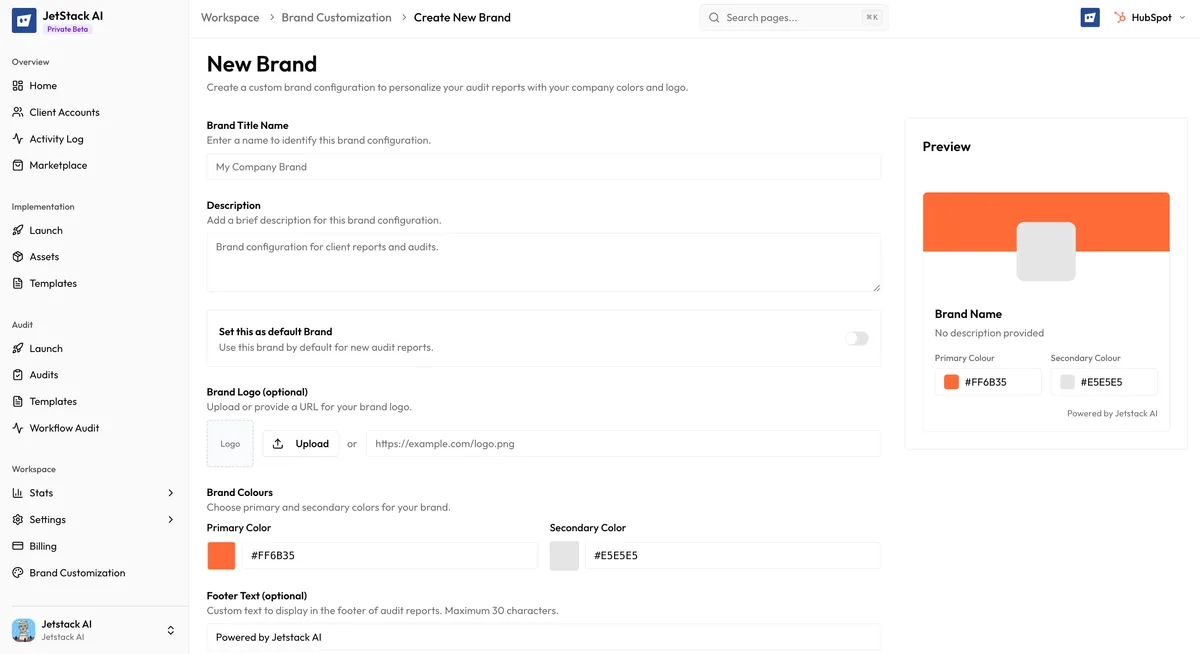
Organization-Level Branding
Section titled “Organization-Level Branding”Set default branding for all reports from your organization:
- Navigate to Settings > Branding in the sidebar.
- Upload your company logo or paste the URL.
- Set your primary color and secondary color using the color picker or by entering hex values.
- Choose your preferred font family from the available options.
- Enter your default footer text.
- Click Save.
These defaults apply to every new audit report unless overridden at the audit level.
Audit-Level Branding
Section titled “Audit-Level Branding”Override branding for a specific audit when you need client-specific customization:
- Open the audit from the Audits list.
- Click Report Settings or navigate to the branding tab.
- Modify any branding element — changes apply only to this specific report.
- Add the client logo URL if you want both your logo and the client’s logo to appear.
- Update the footer text to include client-specific language if needed.
- Click Save.
Audit-level overrides take precedence over organization-level defaults for that specific report.
Branding Elements in Detail
Section titled “Branding Elements in Detail”Colors
Section titled “Colors”The primary color appears in:
- Report header background or accent
- Score badge backgrounds
- Section dividers
- Links and interactive elements
The secondary color appears in:
- Card backgrounds
- Table headers
- Alternate row shading
- Subtle borders and separators
Choose colors with sufficient contrast. A dark primary color with a light secondary color typically works best. Avoid colors that are too similar or that reduce readability.
- Company logo — Displayed prominently in the report header. This identifies the report as coming from your organization.
- Client logo — Displayed alongside your logo, typically smaller. This personalizes the report for the specific client.
Logo recommendations:
- Use transparent PNG or SVG for best results
- Horizontal logos work better than square or vertical ones in the header layout
- Keep file sizes reasonable (under 500KB) for fast report loading
- Ensure the logo is legible at the displayed size
Font Family
Section titled “Font Family”The font family applies to all text in the report — headings, body text, data point labels, and insight content. Choose a font that matches your brand guidelines and is readable at various sizes.
Available font families include common web-safe fonts and popular Google Fonts. If your exact brand font is not available, choose the closest match.
Footer Text
Section titled “Footer Text”The footer appears at the bottom of the report. Common uses:
- “Prepared by [Your Company Name]”
- “Confidential — prepared for [Client Name]”
- “[Your Company] | yourwebsite.com | (555) 123-4567”
- A disclaimer or legal notice
Keep footer text concise. One or two lines work best.
Previewing Branding
Section titled “Previewing Branding”After configuring branding, preview the report before sharing:
- Click View Report from the audit detail view.
- Review the header, colors, fonts, and footer.
- Make adjustments as needed and save.
Always preview after making branding changes, especially when using new color combinations or logos for the first time.