
Custom Domains
Custom domains let you replace the default JetStack AI URL with your own branded subdomain when sharing audit reports. Instead of clients seeing dashboard.jetstack.ai in the URL bar, they see a domain that matches your brand.
Plan requirement: Custom domains are available exclusively on the Ultimate plan.
How Custom Domains Work
Section titled “How Custom Domains Work”Standard URL (All Plans)
Section titled “Standard URL (All Plans)”dashboard.jetstack.ai/r/{accessPath}Custom Domain URL (Ultimate Plan)
Section titled “Custom Domain URL (Ultimate Plan)”{subdomain}.client-reports.jetstack.ai/r/{accessPath}For example, if your agency is called “Acme Consulting” and you choose the subdomain acme, your report URLs would look like:
acme.client-reports.jetstack.ai/r/abc123def456The custom domain applies to all shared report URLs from your organization. You do not configure it per-audit.
Setting Up a Custom Domain
Section titled “Setting Up a Custom Domain”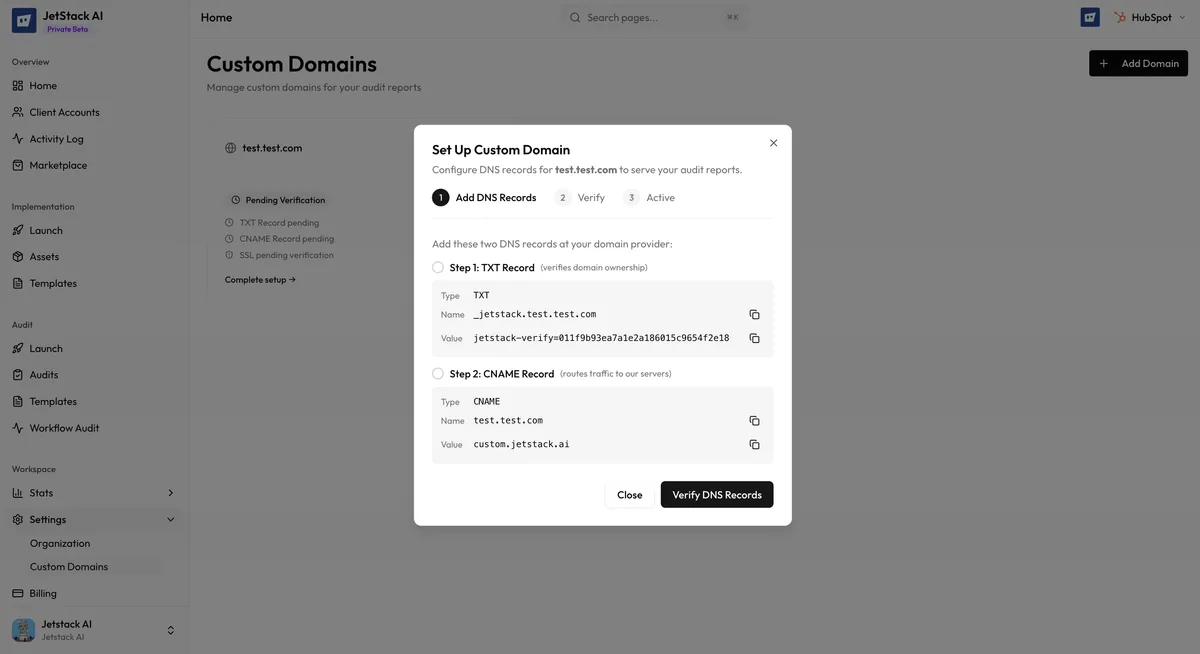
Step 1: Choose Your Subdomain
Section titled “Step 1: Choose Your Subdomain”- Navigate to Settings > Custom Domains in the sidebar.
- Enter your desired subdomain. This should be your company name or brand, using lowercase letters, numbers, and hyphens only.
- Click Check Availability to verify the subdomain is not already taken.
Subdomain guidelines:
- Use your company name or a recognizable abbreviation
- Keep it short and easy to type
- Avoid special characters — only lowercase letters, numbers, and hyphens are allowed
- The subdomain cannot be changed frequently, so choose carefully
Step 2: Configure DNS (If Required)
Section titled “Step 2: Configure DNS (If Required)”For most setups, JetStack AI handles the subdomain configuration automatically since it uses the client-reports.jetstack.ai base domain. No DNS changes are needed on your end.
If your organization has specific DNS or network requirements, JetStack AI support can assist with the configuration.
Step 3: Activate
Section titled “Step 3: Activate”- After confirming your subdomain, click Activate.
- The custom domain becomes active within a few minutes.
- All new shared report URLs will use the custom domain automatically.
- Existing report URLs on the standard domain continue to work.
What Changes
Section titled “What Changes”| Aspect | Before Custom Domain | After Custom Domain |
|---|---|---|
| Report URL | dashboard.jetstack.ai/r/[path] | [subdomain].client-reports.jetstack.ai/r/[path] |
| Browser URL bar | Shows JetStack AI domain | Shows your branded subdomain |
| Report content | Same | Same — no visual changes to the report itself |
| Password protection | Same | Same — still password-protected |
| Existing links | N/A | Old standard links continue to work |
Custom domains affect only the URL. The report content, branding, password protection, and all other features remain identical.
Existing Reports
Section titled “Existing Reports”When you activate a custom domain:
- New reports automatically use the custom domain URL
- Existing reports shared with the standard URL continue to work. Both the old standard URL and the new custom domain URL resolve to the same report.
- You do not need to reshare existing reports unless you want clients to see the branded URL
Changing Your Subdomain
Section titled “Changing Your Subdomain”If you need to change your subdomain:
- Navigate to Settings > Custom Domains.
- Click Change Subdomain.
- Enter the new subdomain and verify availability.
- Confirm the change.
When you change your subdomain:
- The old subdomain stops working after a short transition period
- The new subdomain becomes active within minutes
- Standard domain URLs (
dashboard.jetstack.ai/r/[path]) always continue to work regardless of subdomain changes
Removing a Custom Domain
Section titled “Removing a Custom Domain”To revert to the standard URL format:
- Navigate to Settings > Custom Domains.
- Click Remove Custom Domain.
- Confirm the removal.
All report URLs revert to the standard dashboard.jetstack.ai format. Any previously shared custom domain URLs will stop working after removal.
Troubleshooting
Section titled “Troubleshooting”- Subdomain not available — Another organization has already claimed that subdomain. Choose an alternative.
- Custom domain not resolving — Wait a few minutes after activation for DNS propagation. If it persists after 30 minutes, contact support.
- Old links not working after subdomain change — Standard domain URLs always work as a fallback. Reshare using the standard URL if needed.