
Understanding Workflow Audit Results
After a workflow audit completes, you have access to a comprehensive analysis of your portal’s automation layer. This page explains how to read and act on each part of the results.
Results Overview
Section titled “Results Overview”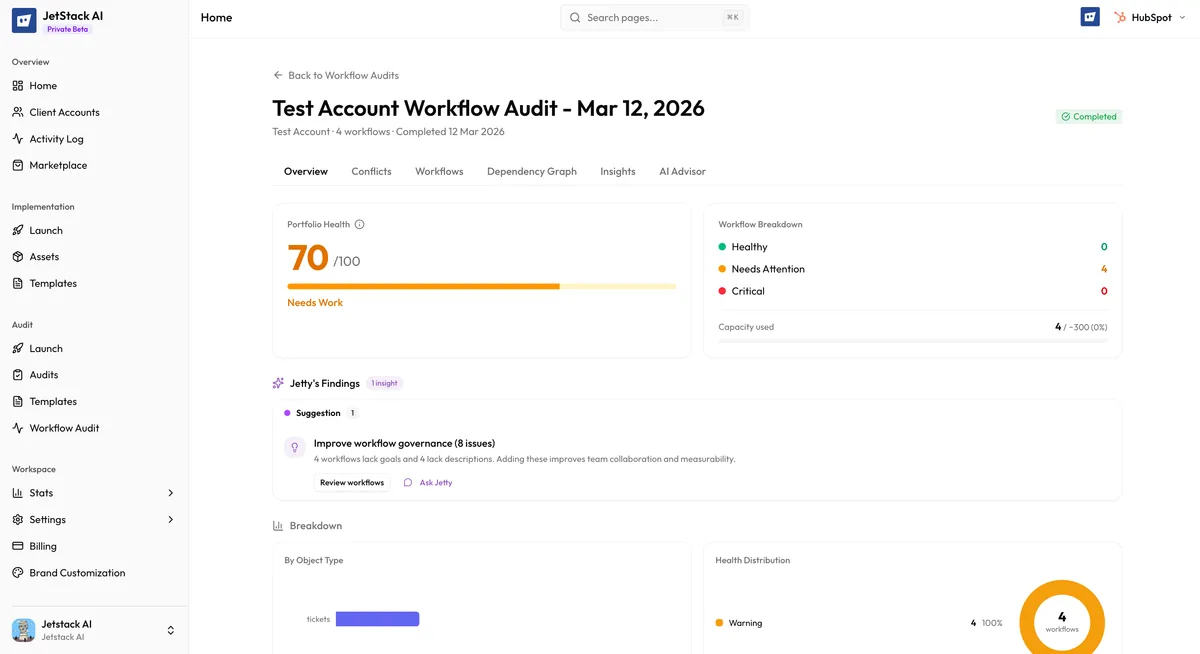
The workflow audit results view opens to a summary dashboard showing:
- Total workflows analyzed — Active and inactive count
- Average health score — The mean health score across all workflows
- Conflicts detected — Total number with severity breakdown
- Top issues — The most critical findings requiring attention
From the summary, you can drill into each section for detail.
Workflow Health Scores
Section titled “Workflow Health Scores”Every analyzed workflow receives a health score from 0-100 based on how well it follows best practices.
What the Score Measures
Section titled “What the Score Measures”| Category | What It Evaluates |
|---|---|
| Naming | Does the workflow name follow a consistent convention? Is it descriptive? |
| Enrollment criteria | Are triggers specific and well-defined? Are they likely to catch the right contacts? |
| Branching logic | Are if/then branches structured clearly? Are there dead-end branches? |
| Suppression | Are suppression lists or criteria configured to exclude inappropriate contacts? |
| Re-enrollment | Are re-enrollment settings intentional and appropriate for the workflow’s purpose? |
| Goal criteria | Is there a defined exit condition so contacts do not remain in the workflow indefinitely? |
| Actions | Are actions properly configured? Are there deprecated or broken actions? |
Score Ranges
Section titled “Score Ranges”| Range | Meaning |
|---|---|
| 85-100 | Excellent. Follows best practices across all categories. |
| 70-84 | Good. Minor improvements possible in specific areas. |
| 50-69 | Average. Functional but with gaps in configuration or best practices. |
| Below 50 | Needs attention. Significant issues that may affect contacts or automation reliability. |
Viewing Individual Scores
Section titled “Viewing Individual Scores”The workflow list shows each workflow with its health score, sorted from lowest to highest by default (so the most problematic workflows appear first). Click any workflow to see:
- The score breakdown by category
- Specific data points that affected the score
- AI-generated insight for this workflow (if available)
- Conflicts involving this workflow
Conflict Report
Section titled “Conflict Report”The conflict report lists all detected conflicts between workflows, organized by severity.
Conflict Severity Levels
Section titled “Conflict Severity Levels”| Severity | Description | Example |
|---|---|---|
| Critical | Conflicts that actively cause incorrect behavior for contacts | Two workflows setting lifecycle stage to different values for the same segment |
| High | Conflicts likely to cause issues under certain conditions | Overlapping enrollment criteria with no suppression, leading to potential duplicate processing |
| Medium | Potential conflicts that may not always manifest | Two workflows that could theoretically act on the same contact but rarely overlap in practice |
| Low | Minor issues or suboptimal configurations | Redundant actions across workflows that waste processing but do not harm contacts |
Conflict Detail
Section titled “Conflict Detail”Each conflict entry shows:
- Conflict type — Competing actions, enrollment overlap, circular dependency, suppression gap, or race condition
- Affected workflows — The two or more workflows involved, with links to their individual details
- Description — What the conflict is and how it manifests
- Impact — What happens to contacts affected by this conflict
- Resolution steps — Recommended actions to fix the conflict
- AI insight — Natural-language explanation and recommendation (if generated)
Common Conflict Types
Section titled “Common Conflict Types”Competing Actions — Two workflows set the same property to different values. For example, Workflow A sets lifecycle stage to “MQL” while Workflow B sets it to “SQL” for contacts that meet both enrollment criteria.
Enrollment Conflicts — A contact meets the enrollment criteria for multiple workflows that perform conflicting operations. Without proper suppression, the contact enters both workflows.
Circular Dependencies — Workflow A enrolls contacts into Workflow B, and Workflow B enrolls contacts back into Workflow A. This can create processing loops.
Suppression Gaps — Workflows that should exclude certain contact segments but lack suppression criteria. Contacts that should be excluded end up processed.
Race Conditions — Multiple workflows trigger simultaneously for the same contact. The order of execution is unpredictable, leading to inconsistent outcomes.
Dependency Map
Section titled “Dependency Map”The dependency map provides a visual representation of how workflows relate to each other:
- Nodes represent individual workflows (color-coded by health score)
- Edges represent connections — enrollment triggers, shared resources, or action chains
- Clusters indicate groups of tightly connected workflows
Use the dependency map to:
- Identify isolated workflows with no connections (potentially orphaned)
- Find highly connected workflows that are central to the automation architecture
- Visualize the blast radius of changes — modifying a highly connected workflow affects many others
- Spot workflow clusters that should be consolidated
AI Insights
Section titled “AI Insights”If AI insight generation was enabled, each section of the results includes natural-language findings:
- Ecosystem summary — Overview of the entire workflow architecture
- Per-workflow insights — Specific findings for workflows with notable scores or issues
- Per-conflict insights — Explanation and resolution guidance for each conflict
- Prioritized recommendations — Ordered list of actions to improve the automation layer
Acting on Results
Section titled “Acting on Results”After reviewing the results, follow this order:
- Resolve critical conflicts first — These are actively causing problems for contacts
- Address high-severity conflicts — Prevent likely issues before they manifest
- Improve low-scoring workflows — Fix naming, add suppression, configure goals
- Optimize the dependency structure — Consolidate redundant workflows, simplify chains
- Re-audit — Run a new workflow audit to verify improvements