
Browsing the Asset Library
The Asset Library is your centralized workspace for all HubSpot assets stored in JetStack AI. Every asset you import from a source portal and every asset you create manually lives here. This page covers how to navigate and find what you need.
Accessing the Asset Library
Section titled “Accessing the Asset Library”Navigate to Implementations > Asset Library from the main sidebar. The library opens with the All tab selected, showing every asset in your workspace.
Tabbed Interface
Section titled “Tabbed Interface”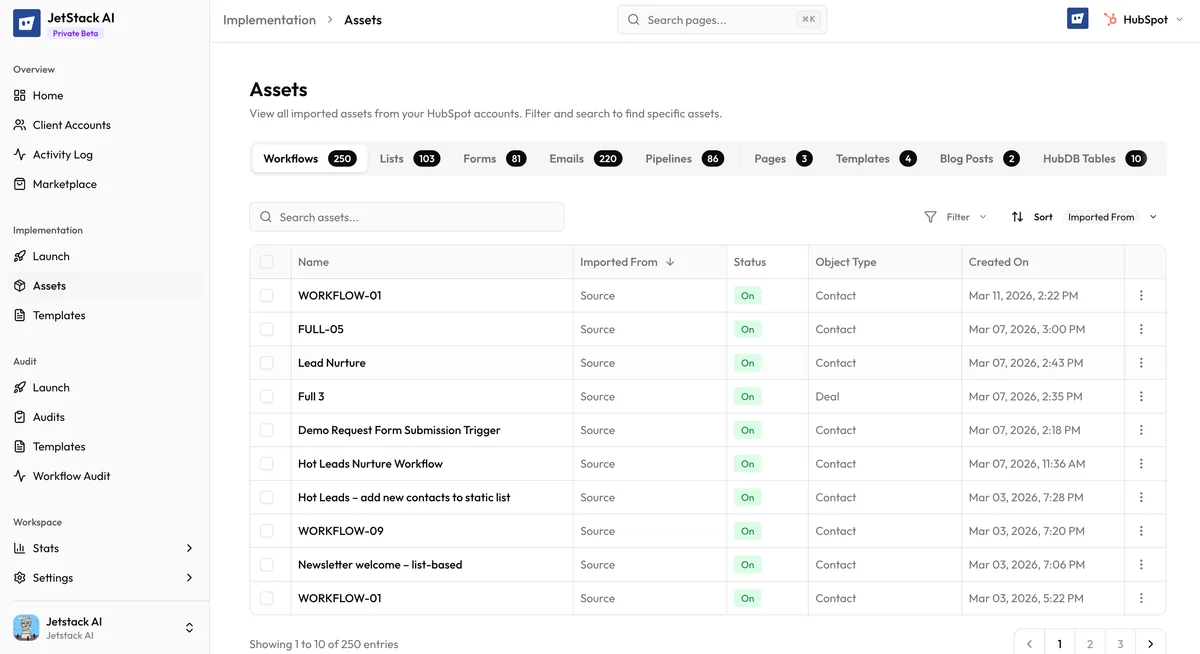
The Asset Library organizes assets by type using a tabbed navigation bar at the top of the page. Each tab corresponds to an asset category:
| Tab | Asset Types Included |
|---|---|
| All | Every asset, regardless of type |
| Workflows | Workflow definitions |
| Lists | Active and static lists |
| Forms | All form types |
| Emails | Marketing and automated emails |
| Pipelines | Deal and ticket pipelines |
| Pages | Landing pages and website pages |
| Templates | Email and page templates |
| Blog Posts | Blog post content |
| Blogs | Blog configurations |
| HubDB | HubDB table definitions |
| Template Modules | CMS template module definitions |
| Association Labels | Custom association labels |
| Property Sets | Grouped property definitions |
| Dashboards | Dashboard configurations |
| Reports | Report definitions |
| Snippets | Text snippets |
| Goal Templates | Goal template definitions |
| Lead Scores | Lead scoring definitions |
| CRM Cards | Custom CRM card configurations |
| Modules | Asset bundles created during import |
Click any tab to filter the view to that asset type. The count next to each tab name shows how many assets of that type are in your library.
Searching Assets
Section titled “Searching Assets”The search bar at the top of the asset list accepts text queries that match against asset names. Search is case-insensitive and matches partial strings. For example, searching “nurture” returns assets named “Lead Nurture Workflow”, “Nurture Email #3”, and “MQL Nurture List”.
Search operates within the currently selected tab. If you are on the Workflows tab and search for “nurture”, only workflows with “nurture” in the name are shown. Switch to the All tab to search across all asset types.
Filtering
Section titled “Filtering”Click the Filter button to open the advanced filter panel. Available filters vary by context but commonly include:
- Status — filter by asset status (e.g., imported, deployed, failed)
- Object Type — for properties and lists, filter by CRM object type (Contact, Company, Deal, Ticket)
- Source Portal — filter by the portal the asset was imported from
- Import Date — filter by when the asset was imported
Filters can be combined. For example, you can show only Contact workflows imported from a specific portal. Active filters are displayed as pills below the filter bar and can be removed individually.
Sorting
Section titled “Sorting”Click any column header in the asset table to sort by that column. Clicking the same header toggles between ascending and descending order. Common sortable columns include:
- Name — alphabetical sort
- Type — group by asset type
- Date Imported — chronological order
- Status — group by current status
The default sort order is by import date, newest first.
Pagination
Section titled “Pagination”Large libraries are paginated to keep the interface responsive. The pagination controls at the bottom of the asset list show:
- Current page and total page count
- Items per page selector (typically 10, 25, 50, or 100)
- Previous / Next navigation buttons
The total asset count is displayed above the table and updates dynamically based on active filters and search terms.
Asset Detail View
Section titled “Asset Detail View”Click any asset row to open its detail view. The detail view shows:
- Asset name and type
- Source portal — the HubSpot account the asset was imported from
- Import date — when the asset was added to the library
- Status — current state (imported, deployed, etc.)
- Dependencies — other assets this asset references or requires
- Configuration data — the parsed asset definition, displayed in a structured format
From the detail view, you can access edit and delete actions, view the full dependency tree, and see deployment history if the asset has been deployed to any destination portals.
Modules in the Library
Section titled “Modules in the Library”Modules appear as first-class items in the Modules tab. A module is a bundle of related assets — clicking a module shows the list of assets it contains. You can expand the module to browse individual bundled assets, or interact with the module as a single unit for deployment.
See Modules & Templates for full details on creating and managing modules.
Next Steps
Section titled “Next Steps”- Managing Assets — Edit, delete, and bulk-operate on assets
- Modules & Templates — Working with asset bundles and deploy templates
- How Import Works — Understanding where library assets come from