
Owner & Team Mapping
Owner and team references are entirely portal-specific in HubSpot. Unlike properties or pipelines that can be matched by name, owner IDs are opaque numeric identifiers tied to individual user accounts in a specific portal. A user who exists in both your source and target portals will have completely different owner IDs in each. This makes owner mapping unique — it always requires manual input.
Why Owner Mapping Is Always Manual
Section titled “Why Owner Mapping Is Always Manual”HubSpot owner IDs are assigned when a user is added to a specific portal. There is no cross-portal identifier that links the same person’s accounts. JetStack AI cannot automatically determine that owner ID 12345678 in Portal A is the same person as owner ID 87654321 in Portal B.
Because of this, every owner reference in your selected assets requires manual mapping. There is no auto-detection for owners.
Common places where owner IDs appear in assets:
- Workflow actions — “Set property value” actions that assign an owner to a contact, deal, or ticket
- Deal rotation — Round-robin assignment steps in workflows
- Default property values — Properties configured with a default owner
- Form notifications — Owner-based email notifications on form submission
- List filters — Lists that filter by “Contact owner is” or “Deal owner is”
The Owner Mapping Interface
Section titled “The Owner Mapping Interface”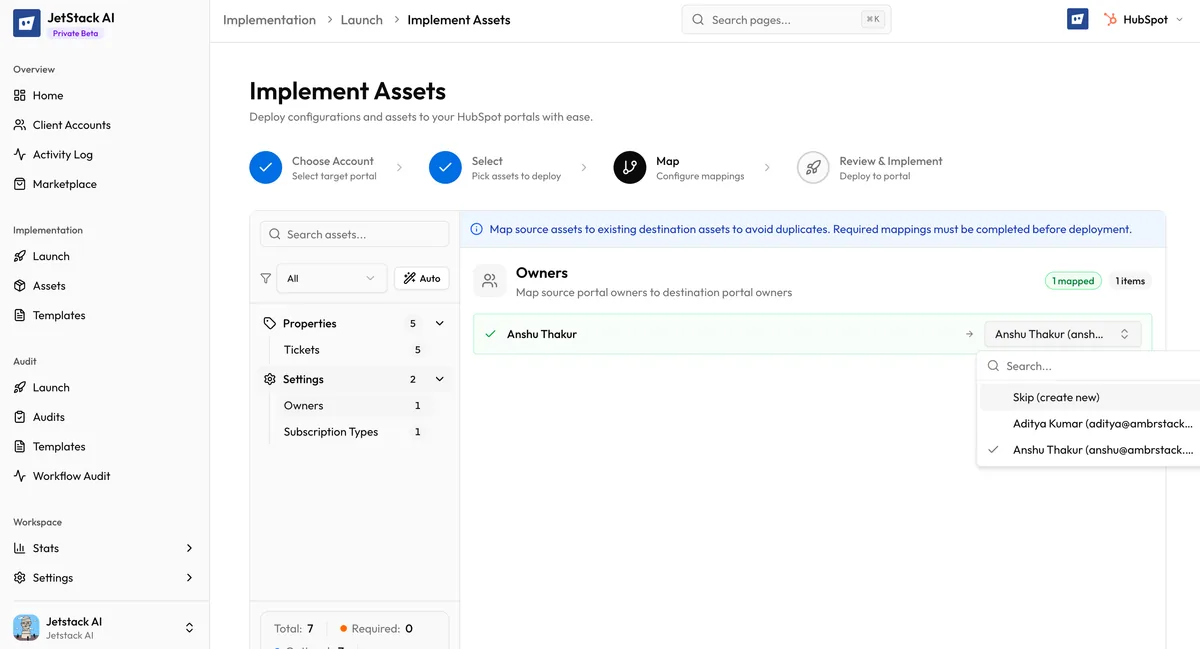
When the deploy wizard detects owner references in your selected assets, the mapping section shows an Owner mappings panel.
How It Appears
Section titled “How It Appears”Each referenced owner from the source portal is listed with:
- Source owner — The display name and email (when available) of the owner in the source portal, along with the source owner ID
- Target owner dropdown — A searchable dropdown listing all users in the target portal. Each entry shows the user’s name and email address.
Select the corresponding person in the target portal for each source owner.
Team ID References
Section titled “Team ID References”Some assets reference teams rather than individual owners. In HubSpot, team-based assignment is used for features like round-robin routing and team-based permissions.
Team IDs in JetStack AI use the format team:XXXX where XXXX is the numeric team ID. When team references are detected, they appear in the mapping interface alongside individual owner mappings.
To map a team:
- Identify the source team by its label (shown next to the
team:XXXXidentifier) - Select the corresponding team in the target portal from the dropdown
Team IDs, like owner IDs, are portal-specific and cannot be auto-detected.
Owner References in Specific Asset Types
Section titled “Owner References in Specific Asset Types”Workflows
Section titled “Workflows”Workflows are the most common source of owner references. Several workflow action types reference owners:
- Set property value — When a workflow sets
hubspot_owner_idon a record - Rotate owner — Round-robin distribution across a list of owners. Every owner in the rotation list needs to be mapped.
- Create task — Tasks assigned to a specific owner
- Send notification — Internal notifications routed to specific team members
Each distinct owner ID found in workflow actions appears as a separate mapping entry.
Active lists that filter by owner-related properties (e.g., “Contact owner is any of [Owner A, Owner B]”) contain embedded owner IDs. These must be mapped for the list to function correctly in the target portal.
Forms with owner-based notification routing or hidden fields that assign owners contain owner references that need mapping.
Deal Rotation Mapping
Section titled “Deal Rotation Mapping”Deal rotation (round-robin assignment) deserves special attention because it references multiple owners in a single workflow action. When you deploy a workflow that includes a rotation step:
- Every owner in the rotation list appears in the mapping interface
- You must map each source owner to a target owner
- The rotation order is preserved based on the order of the mapped owners
If a rotation includes 5 owners and you only map 3, the unmapped owners fall back to their source IDs (which will not resolve in the target portal). This effectively creates a broken rotation step. Map all owners in a rotation to avoid issues.
Fallback Behavior
Section titled “Fallback Behavior”When an owner mapping is not provided (for optional references):
- The source owner ID is used as-is in the deployed asset
- The unmapped reference is recorded in the deployment’s
skippedMappingslog - A warning appears in the activity detail for the affected asset
Because source owner IDs are meaningless in the target portal, unmapped owner references will not resolve. The record or action will effectively have no owner assigned, or the reference will point to a nonexistent user.
For required owner mappings, the deploy wizard will not let you proceed until all entries are configured. This prevents deployment of assets with critically broken owner references.
Handling Missing Users
Section titled “Handling Missing Users”If the source portal has an owner who does not exist in the target portal at all, you have a few options:
- Map to a different user — Assign the reference to whoever will take over that responsibility in the target portal
- Add the user first — Invite the person to the target portal, wait for them to appear in the user list, then proceed with the deployment
- Leave unmapped (optional references only) — Accept the fallback behavior and fix the reference manually after deployment
Best Practices
Section titled “Best Practices”- Prepare a mapping spreadsheet. Before starting the deploy wizard, list all users in the source portal and their corresponding accounts in the target portal. This speeds up the mapping step significantly.
- Map all rotation members. Incomplete deal rotation mappings create broken round-robin steps. Map every member or remove the rotation action.
- Verify team structure. If the source portal uses team-based assignment, confirm that equivalent teams exist in the target portal before deploying.
- Check after deployment. Review the activity detail for any skipped owner mappings. Owner-related issues are the most common cause of “asset deployed but not working correctly” reports.
- Use consistent email addresses. When the same people work across multiple portals, having the same email addresses makes it easier to identify who maps to whom.