
Pipeline Mapping
Pipelines define the stages that deals, tickets, and custom objects move through in HubSpot. Because pipeline IDs and stage IDs are unique to each portal, deploying assets that reference pipelines requires mapping source stages to target stages. JetStack AI automates most of this process and creates missing stages when needed.
When Pipeline Mapping Is Needed
Section titled “When Pipeline Mapping Is Needed”Pipeline mapping is required whenever your selected assets reference pipeline stages. Common scenarios include:
- Workflows that move deals or tickets to specific stages
- Lists that filter contacts based on associated deal stages
- Deal properties with default pipeline assignments
- Custom object pipelines referenced in automation
If none of your selected assets reference pipelines, the mapping step for pipelines is skipped entirely.
How Auto-Detection Works
Section titled “How Auto-Detection Works”When the deploy wizard reaches the mapping step, JetStack AI queries the target portal for all existing pipelines and compares them against the pipelines referenced in your assets.
Matching by Name
Section titled “Matching by Name”Auto-detection matches pipelines and stages using case-insensitive name comparison:
- A source pipeline named “Sales Pipeline” matches a target pipeline named “sales pipeline” or “Sales pipeline”
- A source stage named “Qualified Lead” matches “qualified lead” in the target portal
When a match is found, the stage mapping is resolved automatically and does not appear in the mapping interface.
What Gets Matched
Section titled “What Gets Matched”The auto-detection process works at two levels:
- Pipeline level — Matches the overall pipeline by name. If matched, proceeds to match individual stages.
- Stage level — Within a matched pipeline, each source stage is compared to target stages by name.
If the pipeline name matches but some stages do not, only the unmatched stages require your input.
The Pipeline Mapping Interface
Section titled “The Pipeline Mapping Interface”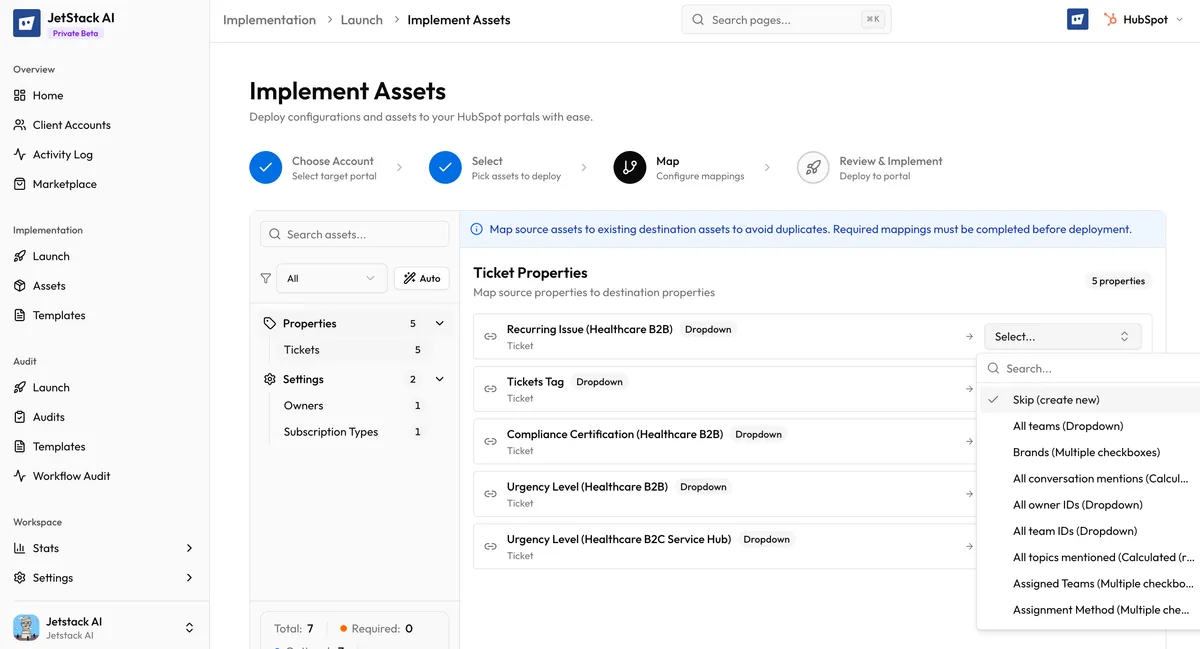
When unmatched pipelines or stages are detected, the mapping interface shows a dedicated Pipeline mappings section.
Pipeline-Level Mapping
Section titled “Pipeline-Level Mapping”Each source pipeline is displayed with its stages listed underneath. If the pipeline has no match in the target portal, you see two options:
- Map to an existing pipeline — Select from a dropdown of pipelines in the target portal
- Create new — JetStack AI will create the pipeline and all its stages in the target portal during deployment
Stage-Level Mapping
Section titled “Stage-Level Mapping”Within a matched or mapped pipeline, individual stages that have no match appear with their own mapping controls:
- Source stage name — The stage name from the imported assets
- Target stage dropdown — Select which existing stage in the target pipeline this maps to
- “Create” option — Let JetStack AI create the missing stage automatically
Automatic Stage Creation
Section titled “Automatic Stage Creation”When JetStack AI creates a missing stage in the target portal, it preserves the following metadata from the source:
| Metadata | Description |
|---|---|
| Stage name | The display label for the stage |
| Display order | The position of the stage in the pipeline |
| Probability | For deal pipelines, the win probability percentage (0.0 to 1.0). Must be a valid decimal value. |
| isClosed | Whether the stage represents a closed state (won or lost) |
| closedWon | For deal stages, whether this is specifically a “won” outcome |
Probability validation: HubSpot requires probability values between 0.0 and 1.0 for deal stages. If the source stage has a probability outside this range, the deployment will fail for that stage. JetStack AI validates probability values before attempting creation.
Closed stage constraints: HubSpot enforces that every pipeline must have at least one closed-won and one closed-lost stage. If your source pipeline’s closed stages are mapped but the target pipeline already has different closed stages, conflicts may arise. See Troubleshooting for resolution steps.
Pipeline Types
Section titled “Pipeline Types”JetStack AI handles three types of pipelines:
Deal Pipelines
Section titled “Deal Pipelines”The most common type. Deal pipelines track sales opportunities through stages like “Appointment Scheduled”, “Qualified to Buy”, and “Closed Won”. Stage metadata includes probability and closed status.
Ticket Pipelines
Section titled “Ticket Pipelines”Used for customer service. Ticket pipelines track support requests through stages like “New”, “In Progress”, and “Resolved”. Ticket stages do not have probability values but do have isClosed flags.
Custom Object Pipelines
Section titled “Custom Object Pipelines”Custom objects can have their own pipelines if configured in the source portal. These are handled similarly to deal pipelines but require the custom object to be deployed first (pre-deploy phase) before the pipeline can be created.
Mapping Strategies
Section titled “Mapping Strategies”Full Pipeline Replication
Section titled “Full Pipeline Replication”When you want an exact copy of the source pipeline in the target:
- Select Create new at the pipeline level
- All stages are created automatically with their original metadata
- Stage order, probabilities, and closed states are preserved
This is the simplest approach for setting up a fresh portal.
Mapping to an Existing Pipeline
Section titled “Mapping to an Existing Pipeline”When the target portal already has a pipeline with a similar structure:
- Map the source pipeline to the target pipeline
- Match individual stages where names differ
- Let JetStack AI create any stages that are genuinely missing
This approach preserves the target portal’s existing pipeline while filling in gaps.
Partial Mapping
Section titled “Partial Mapping”You can map some stages and leave others unmapped:
- Mapped stages use the target stage ID in all deployed assets
- Unmapped stages fall back to the source stage ID, which will not resolve in the target portal
Partial mapping is not recommended for production deployments. It results in broken references that require manual correction.
What Happens During Deployment
Section titled “What Happens During Deployment”When the deploy engine encounters a pipeline stage reference in an asset:
- Checks the stage mapping table for a target stage ID
- If found, substitutes the target stage ID
- If not found, checks whether stage creation was requested
- If creation was requested, creates the stage first, then substitutes the new ID
- If no mapping and no creation, uses the source ID as fallback and logs a warning
All pipeline and stage creation happens before assets that reference those stages are deployed, ensuring references are valid at the time of asset creation.
Best Practices
Section titled “Best Practices”- Review target pipelines before deploying. Open the target portal’s pipeline settings to understand what already exists.
- Use auto-detection. Name your pipelines and stages consistently across portals to maximize automatic matching.
- Validate probabilities. If creating deal stages, ensure probability values are between 0.0 and 1.0.
- Check for pipeline limits. HubSpot plan tiers limit the number of pipelines. Verify the target portal can accommodate new pipelines before deploying.