
Task Statuses
The Activity Log tracks every background operation JetStack AI performs — imports, deployments, bulk property creation, and audits. Each task in the log has a status that tells you whether it is still running, finished successfully, encountered errors, or partially completed. This page explains what each status means and how to interpret them.
Status Types
Section titled “Status Types”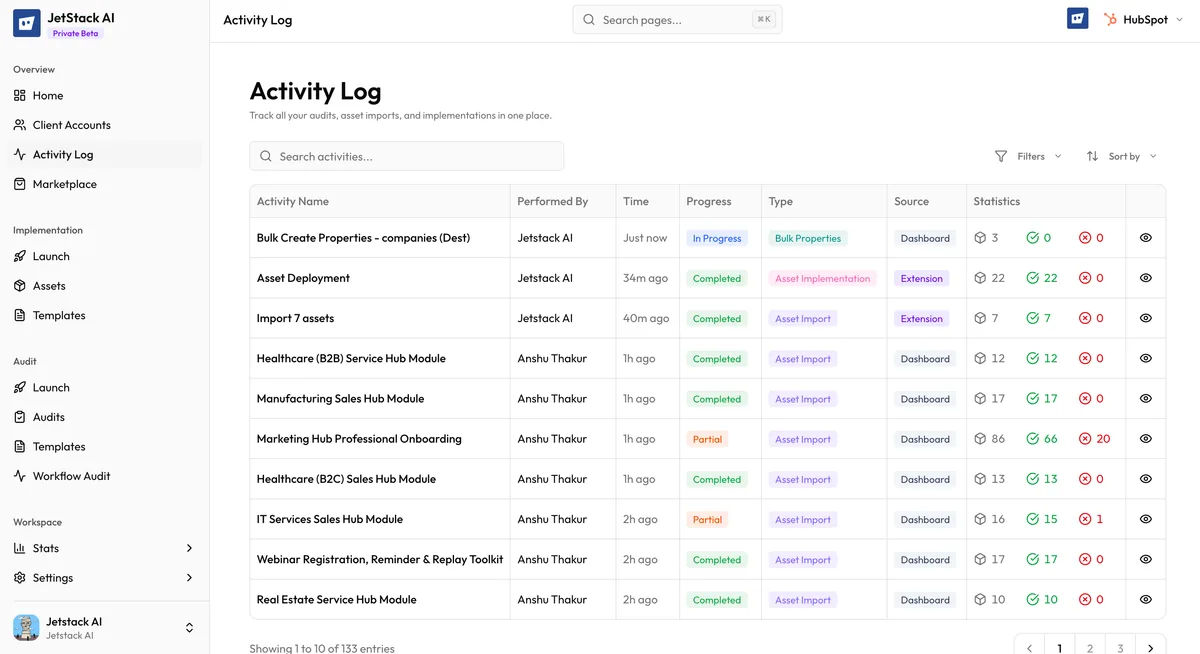
Every task in the Activity Log displays one of four status indicators:
| Status | Indicator | Meaning |
|---|---|---|
| In Progress | Blue spinner | The task is currently running. Assets are being processed. |
| Completed | Green checkmark | The task finished successfully. All assets were processed without errors. |
| Failed | Red X | The task encountered a critical error and could not complete. No assets (or very few) were successfully processed. |
| Partial | Orange warning | The task completed but some assets failed while others succeeded. Review the detail view for specifics. |
In Progress
Section titled “In Progress”A task with In Progress status is actively running on JetStack AI’s backend. This is the initial state for every task after you start an import, deployment, or bulk operation.
Key behaviors for in-progress tasks:
- Auto-refresh — The Activity Log automatically refreshes the status of in-progress tasks every few seconds. You do not need to manually reload the page.
- Progress indicator — A blue spinner appears next to the task. Some tasks also display a progress count (e.g., “12 of 45 assets processed”).
- Cancellation — You can cancel an in-progress task by clicking the Cancel action. Cancellation stops processing of remaining assets. Assets that were already processed are not rolled back.
In-progress tasks typically complete within seconds to a few minutes, depending on the number of assets and the complexity of the operation. Large imports (50+ assets) or deployments with many dependencies may take longer.
Completed
Section titled “Completed”A Completed task finished successfully with all assets processed. This is the ideal outcome.
- Every asset in the task was imported, deployed, or created without errors.
- The green checkmark confirms full success.
- You can click View Detail to see the complete breakdown, including timestamps for each asset.
Completed tasks remain in the Activity Log indefinitely for your records. You can delete completed tasks to clean up the log if needed.
Failed
Section titled “Failed”A Failed task encountered an error that prevented it from completing. This usually indicates a systemic issue rather than a problem with individual assets.
Common causes of failed tasks:
- Authentication failure — The portal’s OAuth connection expired mid-task. See Reconnecting a Portal.
- Rate limiting — HubSpot’s API rate limits were exceeded and retries were exhausted.
- Network error — A connectivity issue between JetStack AI’s servers and HubSpot’s API.
- Invalid configuration — The task was started with missing or invalid parameters.
Failed tasks can be retried. See Retrying Failed Tasks for instructions.
Partial
Section titled “Partial”A Partial status means the task ran to completion but produced a mix of successes and failures at the individual asset level. This is the most nuanced status and warrants closer inspection.
Examples of partial completion:
- An import of 20 assets where 18 succeeded and 2 failed due to unsupported asset configurations.
- A deployment where most assets were created but a few failed because their dependencies could not be resolved.
- A bulk property creation where some properties already existed (skipped) and others had validation errors.
When you see a partial status:
- Click View Detail to open the Task Details page.
- Review the asset-by-asset breakdown to identify which assets failed and why.
- Address the underlying issues (e.g., fix configuration, reconnect portal).
- Retry the failed assets if needed.
Filtering by Status
Section titled “Filtering by Status”The Activity Log supports filtering to help you find specific tasks:
- By status — Show only In Progress, Completed, Failed, or Partial tasks.
- By type — Filter by task type: Import, Deploy, or Bulk Property Creation.
- By portal — Show only tasks associated with a specific connected portal.
Combine filters to narrow results. For example, filter by Failed status and a specific portal to find all failed operations for a particular client.
Status Transitions
Section titled “Status Transitions”Tasks move through statuses in a predictable order:
- Every task starts as In Progress.
- When processing finishes, the task transitions to Completed, Failed, or Partial based on the results.
- A cancelled task transitions to Failed with a cancellation note.
- Statuses are final once set — a Completed task cannot become Failed later.