
Managing Templates
As your template library grows, you will need to manage it — editing templates as requirements change, cloning them for variations, and deleting ones you no longer need. This page covers the full lifecycle of template management.
Viewing Your Templates
Section titled “Viewing Your Templates”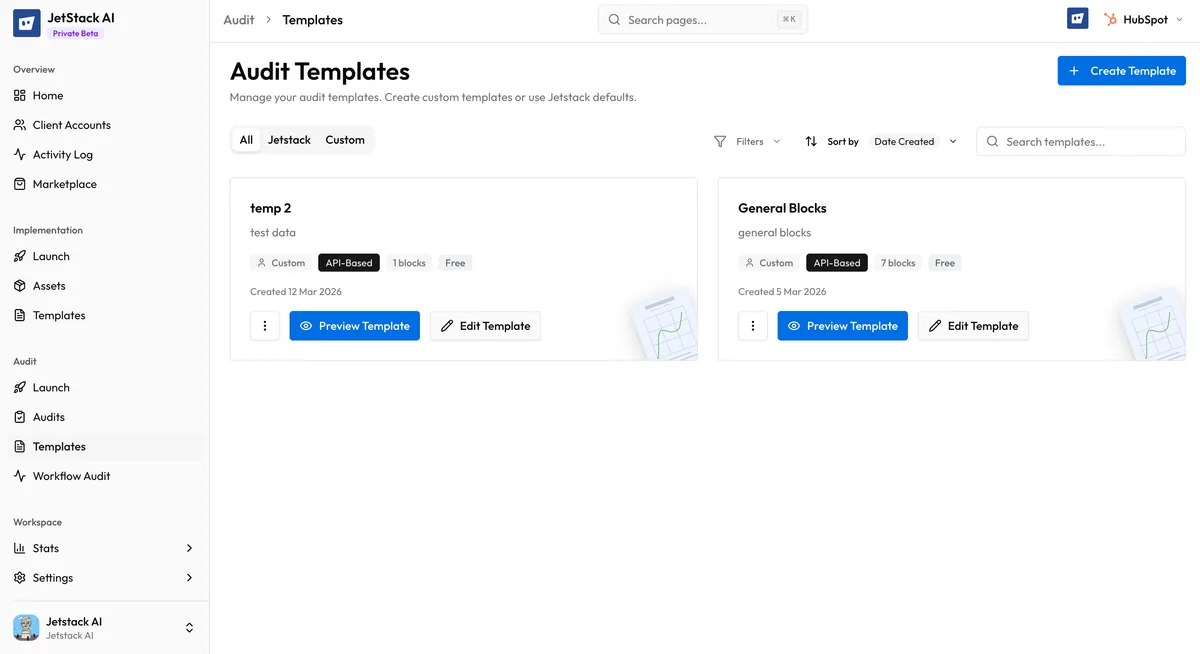
Navigate to Audits > Templates in the sidebar to see your template library. The list shows:
- Template name and description
- Report type — SIMPLE or ADVANCED
- Block count — How many blocks are included
- Premium badge — If the template requires premium features
- Last modified date
- Created by — The team member who created the template
Templates are organized into two tabs:
- Pre-Built — JetStack AI’s library of standard templates (read-only, but can be cloned)
- Custom — Templates your team has created or cloned
Editing a Template
Section titled “Editing a Template”To modify an existing custom template:
- Navigate to Audits > Templates and click on the template.
- Click Edit.
- Modify any settings:
- Name and description — Update the template metadata
- Blocks — Add or remove blocks from the configuration
- Report type — Switch between SIMPLE and ADVANCED
- Branding — Update colors, logos, fonts, or footer text
- Premium requirements — Adjust premium flags
- Click Save.
Changes to a template affect only future audits that use it. Existing completed audits that were run with a previous version of the template are not affected.
What You Cannot Edit
Section titled “What You Cannot Edit”- Pre-built templates — These are read-only. Clone them first to create an editable copy.
- Template ID — The internal identifier is permanent. Renaming a template does not change its ID.
Cloning a Template
Section titled “Cloning a Template”Cloning creates an exact copy of a template that you can modify independently.
Cloning a Pre-Built Template
Section titled “Cloning a Pre-Built Template”- In the Pre-Built tab, find the template you want to customize.
- Click Clone.
- The clone appears in your Custom tab with the name “[Original Name] (Copy).”
- Edit the clone as needed — rename it, adjust blocks, change branding.
- Save the modified version.
Cloning a Custom Template
Section titled “Cloning a Custom Template”- In the Custom tab, find the template to clone.
- Click Clone.
- Edit and save the copy.
Cloning is useful for creating variations:
- A “Full Audit” and a “Quick Scan” version with different block selections
- Client-specific versions with tailored branding
- Industry variations with different emphasis areas
Deleting a Template
Section titled “Deleting a Template”To delete a custom template:
- Navigate to the template in the Custom tab.
- Click Delete.
- Confirm the deletion.
What Happens When You Delete a Template
Section titled “What Happens When You Delete a Template”- The template is permanently removed from your library
- Existing audits that were run using this template are not affected — they retain their data and configuration
- Pre-built templates cannot be deleted — they are part of JetStack AI’s standard library
If you accidentally delete a template, you will need to recreate it manually or clone a similar template and modify it.
Template Best Practices
Section titled “Template Best Practices”Naming Conventions
Section titled “Naming Conventions”Use a consistent naming scheme for your templates:
| Pattern | Example |
|---|---|
| [Scope] [Type] | “Full Portal Advanced” |
| [Client] [Scope] | “Acme Corp Sales Audit” |
| [Industry] [Scope] | “SaaS Quick Scan” |
| [Frequency] [Scope] | “Monthly Health Check” |
Clear names help team members select the right template without opening each one to check its configuration.
Descriptions
Section titled “Descriptions”Write descriptions that answer three questions:
- When should this template be used? (e.g., “For initial client assessments”)
- What does it cover? (e.g., “All hubs except Service”)
- What makes it different from similar templates? (e.g., “Simplified version without advanced reporting blocks”)
Regular Maintenance
Section titled “Regular Maintenance”Review your template library periodically:
- Archive or delete templates that are no longer used
- Update templates when your audit methodology evolves
- Consolidate similar templates that have diverged unnecessarily
- Verify premium requirements are accurate as your plan changes
Team Coordination
Section titled “Team Coordination”All team members in your organization share the same template library. When creating or modifying templates:
- Communicate changes to the team, especially for templates used in active client engagements
- Avoid editing templates that other team members are actively using for in-progress audits
- Use descriptions to document the purpose and intended audience so team members do not accidentally use the wrong template
Template Limits
Section titled “Template Limits”The number of custom templates you can create depends on your plan. Check Plans and Limits for your current template allowance. Pre-built templates do not count against your limit.