
Connecting Your First Portal
Connecting a HubSpot portal is the first step before you can run audits or import assets. JetStack AI uses HubSpot’s OAuth 2.0 flow to establish a secure, permissioned connection to your portal. No API keys or tokens are exchanged manually — the entire process happens through HubSpot’s standard authorization screen.
Prerequisites
Section titled “Prerequisites”Before connecting a portal, make sure you have:
- HubSpot Admin access — You need Super Admin or Admin permissions on the portal you want to connect. Standard users cannot authorize the OAuth scopes JetStack AI requires.
- A JetStack AI account — If you have not signed up yet, see the Quickstart Guide.
- Portal not already connected — Each HubSpot portal can only be connected to one JetStack AI organization at a time. If the portal is already linked to another organization, you will need to disconnect it there first.
Step-by-Step: OAuth Connection Flow
Section titled “Step-by-Step: OAuth Connection Flow”- From your JetStack AI dashboard, navigate to Client Accounts in the sidebar.
- Click Add Portal in the top-right corner.
- You are redirected to HubSpot’s OAuth authorization page.
- Select the portal you want to connect from HubSpot’s account picker. If you have access to multiple portals, make sure you select the correct one.
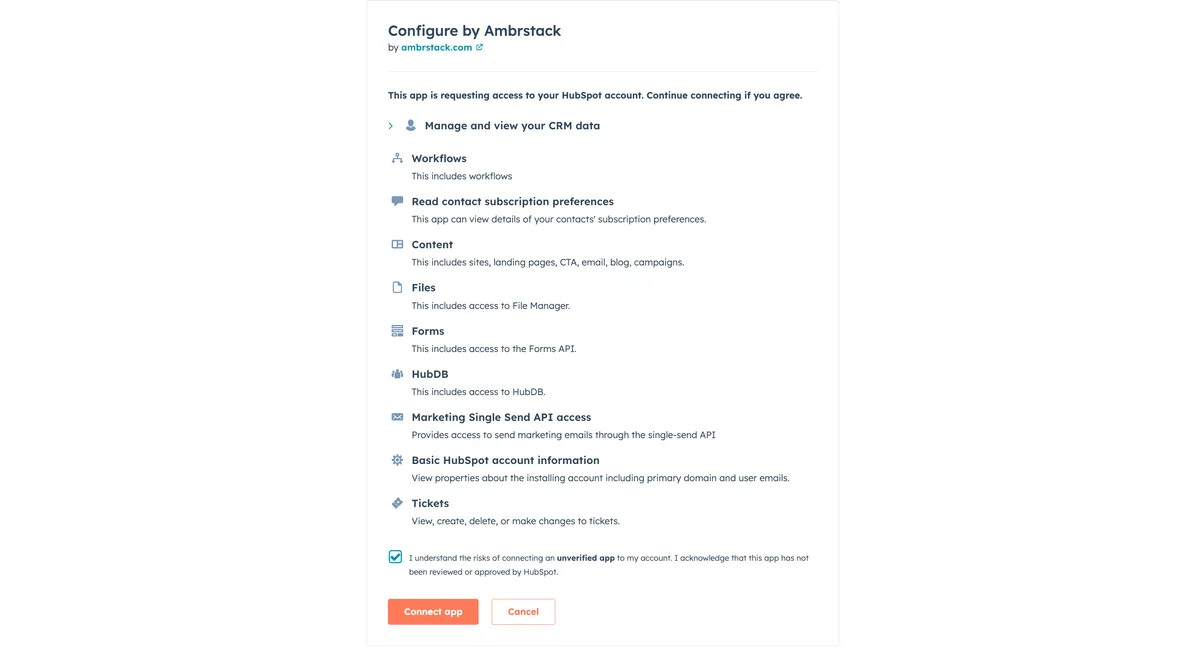
- Review the list of permissions (scopes) JetStack AI is requesting. See the section below for details on each scope.
- Click Connect app to authorize.
 7. HubSpot redirects you back to JetStack AI. Your portal now appears in the Client Accounts list.
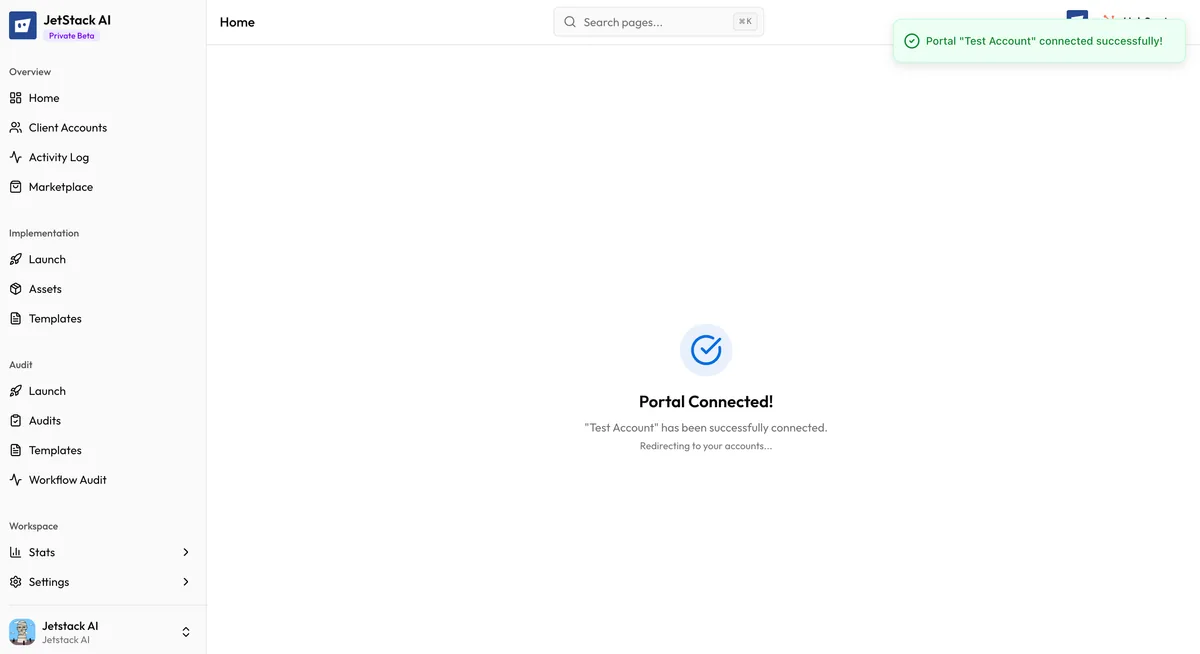
The connection is established immediately. You can begin importing assets or running audits right away.
Requested Scopes and Why
Section titled “Requested Scopes and Why”JetStack AI requests the following OAuth scopes during the connection flow. Each scope corresponds to a category of assets or data JetStack AI needs to read (for imports and audits) or write (for deployments).
| Scope Category | What It Covers | Why It Is Needed |
|---|---|---|
| CRM | Contacts, companies, deals, tickets, custom objects, properties, association labels | Reading CRM schema for audits; importing and deploying properties, pipelines, and custom objects |
| Marketing | Emails, forms, lists, workflows | Importing and deploying marketing automation assets |
| CMS | Pages, blog posts, templates, modules, HubDB tables | Importing and deploying website and content assets |
| Automation | Workflows, sequences | Reading workflow configurations for import and audit |
| Reporting | Dashboards, reports | Importing and deploying reporting assets (Ultimate plan) |
| Settings | Account settings, users | Reading portal configuration for audits |
| Files | File manager access | Uploading images and files referenced by imported assets |
JetStack AI only requests the scopes necessary for the features you use. All data access follows HubSpot’s OAuth security model — you can revoke access at any time from your HubSpot account settings under Settings > Integrations > Connected Apps.
Connection Types
Section titled “Connection Types”When you connect a portal, JetStack AI establishes a connection that supports both implementations and audits. The type of access you exercise depends on the actions you take:
- Implementation (read + write) — When you import assets, JetStack AI reads from the source portal. When you deploy, JetStack AI writes to the destination portal.
- Audit (read only) — Audits only read data from the connected portal. No changes are ever made to a portal during an audit.
You do not need to choose a connection type upfront. A single OAuth connection supports all JetStack AI features. The distinction matters for understanding what JetStack AI does with the access — audits are strictly read-only, while deployments write new assets to the target portal.
Managing Multiple Portals
Section titled “Managing Multiple Portals”Most Solutions Partners work with many client portals. JetStack AI supports connecting as many portals as your plan allows.
- Pro plan — Up to 3 client accounts
- Ultimate plan — Up to 10 client accounts
- Custom plan — Unlimited client accounts
To add more portals, repeat the connection flow from Client Accounts > Add Portal. Each portal connection is independent — separate OAuth authorizations, separate scopes, separate data.
To disconnect a portal, click the portal in your Client Accounts list and select Remove. This revokes JetStack AI’s access. Any previously imported assets remain in your workspace, but you will not be able to import new assets or deploy to that portal until you reconnect.
Troubleshooting
Section titled “Troubleshooting”OAuth Authorization Fails
Section titled “OAuth Authorization Fails”Symptom: You click “Connect app” on HubSpot’s OAuth screen but get redirected back to JetStack AI with an error, or the page hangs.
Cause: This typically happens due to browser extensions blocking the redirect, pop-up blockers interfering with the OAuth flow, or a temporary issue with HubSpot’s OAuth service.
Solution: Try the following in order:
- Disable browser extensions temporarily (especially ad blockers and privacy tools) and retry.
- Try in an incognito or private browsing window.
- Clear your browser cache and cookies for both
app.jetstack.aiandapp.hubspot.com. - Wait 5 minutes and retry — HubSpot OAuth outages are rare but do happen.
Insufficient Permissions
Section titled “Insufficient Permissions”Symptom: The OAuth screen shows an error stating you do not have permission to authorize this app, or certain scopes are listed as unavailable.
Cause: Your HubSpot user account does not have Super Admin or Admin permissions on the portal you selected.
Solution: Ask a Super Admin on the target portal to either grant you Admin access or complete the OAuth connection themselves. The person authorizing the connection must have sufficient permissions to grant all requested scopes.
Portal Already Connected
Section titled “Portal Already Connected”Symptom: After authorizing, JetStack AI shows a message that this portal is already connected to another organization.
Cause: Each HubSpot portal can only be linked to one JetStack AI organization. Another team member may have connected it under a different JetStack AI account.
Solution: Identify which JetStack AI organization currently holds the connection. Either disconnect the portal from that organization first, or join that existing organization if appropriate. If you cannot locate the other organization, contact JetStack AI support for assistance.
Connection Shows as Disconnected
Section titled “Connection Shows as Disconnected”Symptom: A previously connected portal shows a “Disconnected” or “Expired” status in your Client Accounts list.
Cause: The OAuth token has expired or been revoked. This can happen if someone removed JetStack AI from the portal’s Connected Apps in HubSpot, or if the authorizing user’s account was deactivated.
Solution: Click Reconnect on the portal entry and complete the OAuth flow again. You will need Admin access to the portal to re-authorize.