
Property & Asset Mapping
When you deploy assets from one HubSpot portal to another, internal references need to be translated. A workflow that filters on a custom property called lead_score_v2 in the source portal may need to reference company_lead_score in the target. Property and asset mapping is how you define these translations.
This page covers the mapping step of the deploy wizard (step 3 of 4) and explains how property mappings, custom field mappings, and lifecycle stage mappings work.
Why Mapping Is Needed
Section titled “Why Mapping Is Needed”Every HubSpot portal has its own set of custom properties, lifecycle stages, and field configurations. Even portals set up by the same team will have naming differences, extra fields, or missing properties.
When JetStack AI analyzes your selected assets for deployment, it identifies every property name, lifecycle stage, and custom field referenced in those assets. It then checks the target portal to see which references have direct matches and which need user input.
Common scenarios requiring mapping:
- A workflow references a custom property that has a different internal name in the target portal
- A list filter uses a lifecycle stage value that exists with a different label in the target
- A form includes a custom field that maps to a differently-named property
- An email personalization token references a property not yet created in the target portal
The Analysis Phase
Section titled “The Analysis Phase”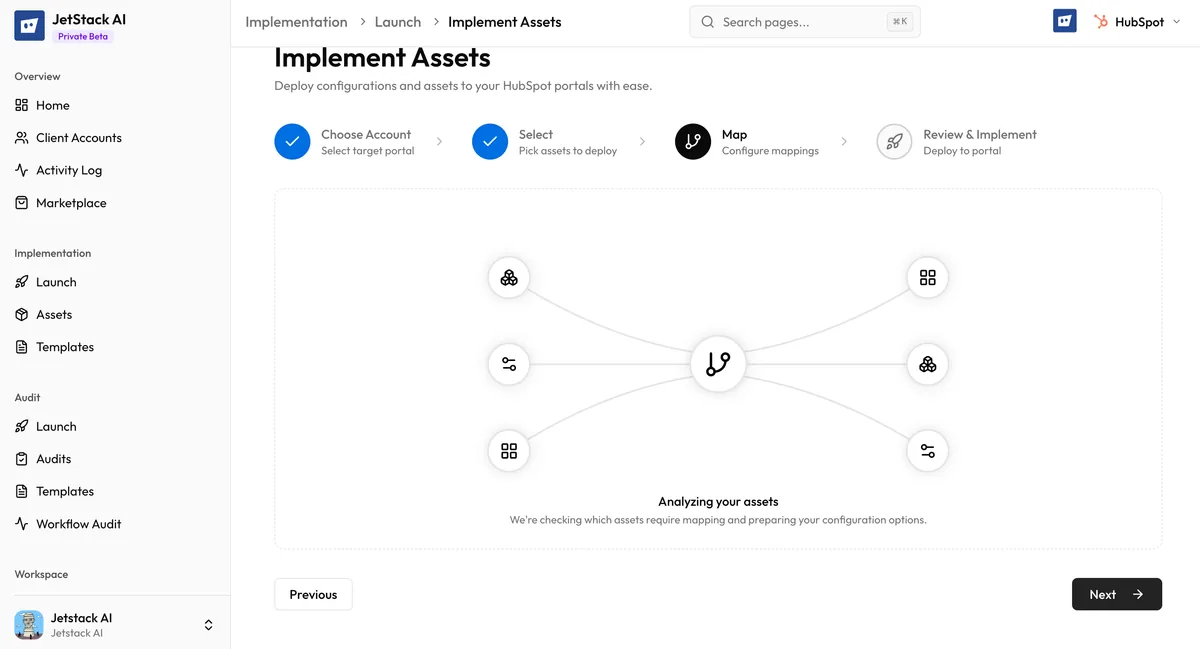
After you select assets and click Next in the deploy wizard, JetStack AI runs an analysis phase. You will see an “Analyzing your assets” loading indicator, which takes a minimum of 3 seconds as the engine:
- Scans every selected asset for property references, lifecycle stages, and custom fields
- Queries the target portal’s property schema
- Compares source references against target properties
- Identifies matches, mismatches, and missing properties
Two Possible Outcomes
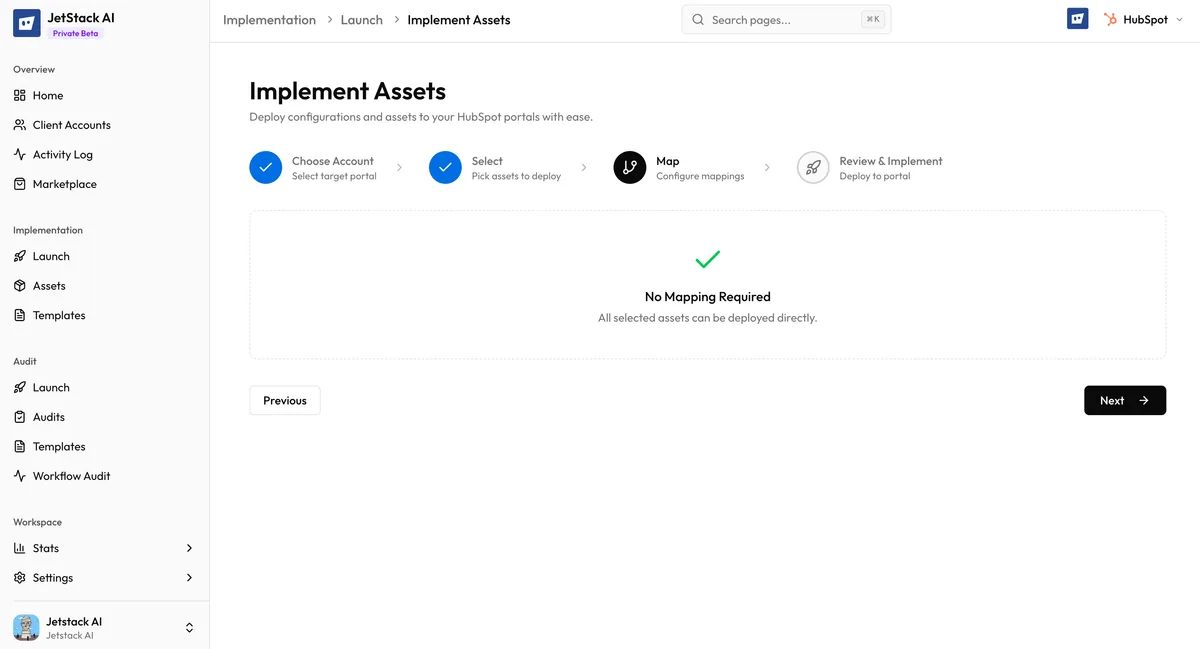
Section titled “Two Possible Outcomes”- “No mapping required” — Every reference in your selected assets has a direct match in the target portal. The wizard automatically advances to the Review step. No action needed.
- Mapping UI displayed — One or more references need your input. The mapping interface appears with sections for each mapping type that requires configuration.
The Mapping Interface
Section titled “The Mapping Interface”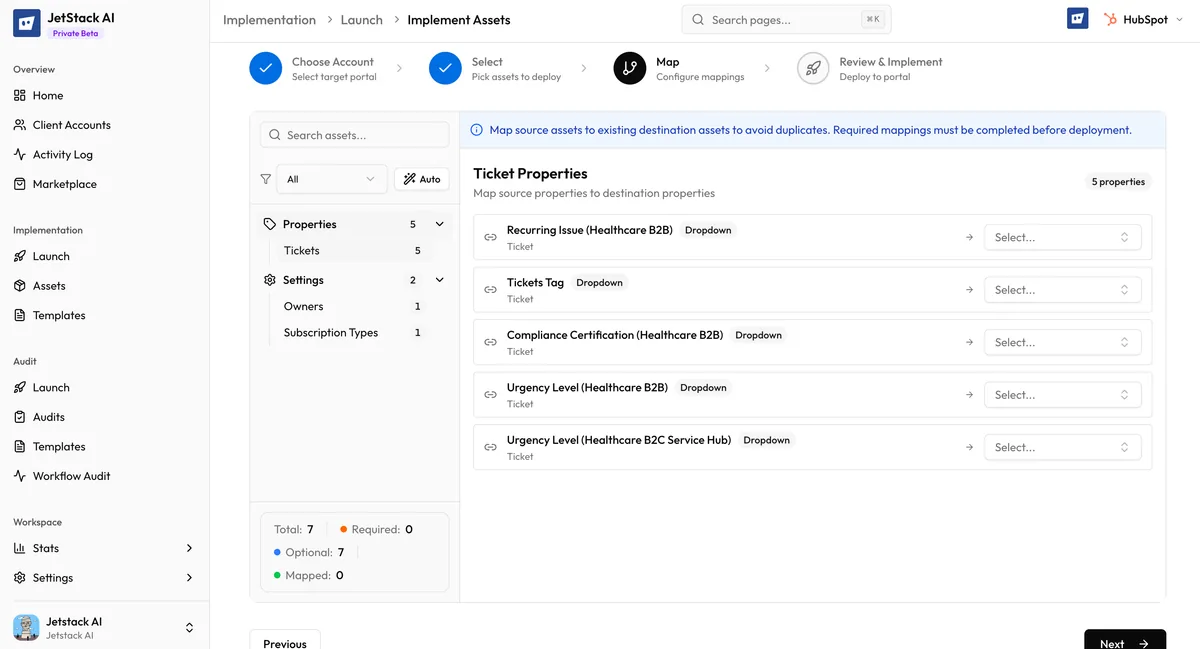
When mappings are needed, the interface shows distinct sections based on what was detected:
Property Mappings
Section titled “Property Mappings”Each property mapping shows:
- Source property — The internal name used in the imported assets (e.g.,
lead_score_v2) - Target property dropdown — A searchable dropdown of all properties in the target portal. Select the corresponding property.
- Status indicator — Shows whether the mapping is required or optional
Required mappings must be configured before you can proceed. These are properties referenced in critical asset configurations (workflow filters, list criteria, form fields) where a missing mapping would cause the asset to malfunction.
Optional mappings are properties referenced in less critical contexts (default values, display preferences). You can skip these and the source value will be used as a fallback.
Lifecycle Stage Mappings
Section titled “Lifecycle Stage Mappings”If your assets reference specific lifecycle stage values (common in workflows and lists), you may need to map source stages to target stages. The target portal may use different stage names or have additional custom stages.
Each lifecycle stage mapping shows the source stage label and a dropdown of stages available in the target portal.
Custom Field Mappings
Section titled “Custom Field Mappings”Custom fields that do not match any property in the target portal appear in this section. You have two options:
- Map to an existing property — Select a target property from the dropdown
- Leave unmapped — The source value is used as a fallback, and a warning is logged
Required vs Optional Mappings
Section titled “Required vs Optional Mappings”The mapping interface clearly distinguishes between mappings that block deployment and those that are advisory:
| Category | Behavior | Example |
|---|---|---|
| Required | Must be mapped before proceeding. The “Next” button is disabled until all required mappings are configured. | A workflow enrollment filter references a custom property not found in the target portal |
| Optional | Can be skipped. A fallback value is used and a warning is recorded. | A contact property default value references an owner ID |
A validation status indicator at the top of the mapping section shows the overall state: how many required mappings remain, how many optional mappings are configured, and whether you are ready to proceed.
Auto-Detection
Section titled “Auto-Detection”JetStack AI automatically matches properties in several ways before asking for your input:
- Exact name match — If a property with the same internal name exists in the target portal, it is matched automatically and does not appear in the mapping interface.
- HubSpot default properties — Standard HubSpot properties (e.g.,
firstname,email,company) are always present in every portal and are matched automatically.
Only properties that cannot be auto-matched require manual mapping.
Fallback Behavior
Section titled “Fallback Behavior”When a mapping is not found and not provided (for optional mappings or when a user skips configuration):
- The source value is used as-is in the deployed asset
- The unmapped reference is recorded in the deployment’s
skippedMappingslog - A warning is attached to the affected asset in the activity detail
Fallback does not prevent deployment. The asset is still created, but the specific reference may not function correctly. You can review all skipped mappings in the Activity detail after deployment and manually fix them in HubSpot if needed.
Best Practices
Section titled “Best Practices”- Review your target portal’s properties before deploying. Knowing what already exists helps you anticipate which mappings will be needed.
- Create missing properties first. If the target portal is missing properties that your assets depend on, consider running a Bulk Properties deployment first.
- Do not skip required mappings. While optional mappings can safely use fallbacks, skipping required mappings will prevent deployment from proceeding — and for good reason. These references are critical to asset functionality.
- Check skipped mappings after deployment. Review the activity detail for any warnings about fallback values. Address these promptly to ensure all assets work as intended.