
Viewing Reports
Audit reports present the complete results of a portal audit in a structured, visual format. They are designed to be shared with clients but also serve as your primary review interface for audit findings.
Accessing Reports
Section titled “Accessing Reports”From the Dashboard
Section titled “From the Dashboard”- Navigate to Audits in the sidebar.
- Click on the completed audit you want to view.
- Click View Report to open the full report view.
The report opens in a new view within the dashboard, showing the complete audit results.
From a Shared Link
Section titled “From a Shared Link”Reports can also be accessed via a direct URL. The standard format is:
dashboard.jetstack.ai/r/{accessPath}
If the report has password protection enabled, visitors are prompted to enter the password before viewing the report content. See Password Protection for details.
For Ultimate plan users with custom domains configured, the URL format is:
{subdomain}.client-reports.jetstack.ai/r/{accessPath}
See Custom Domains for setup instructions.
Report Layout
Section titled “Report Layout”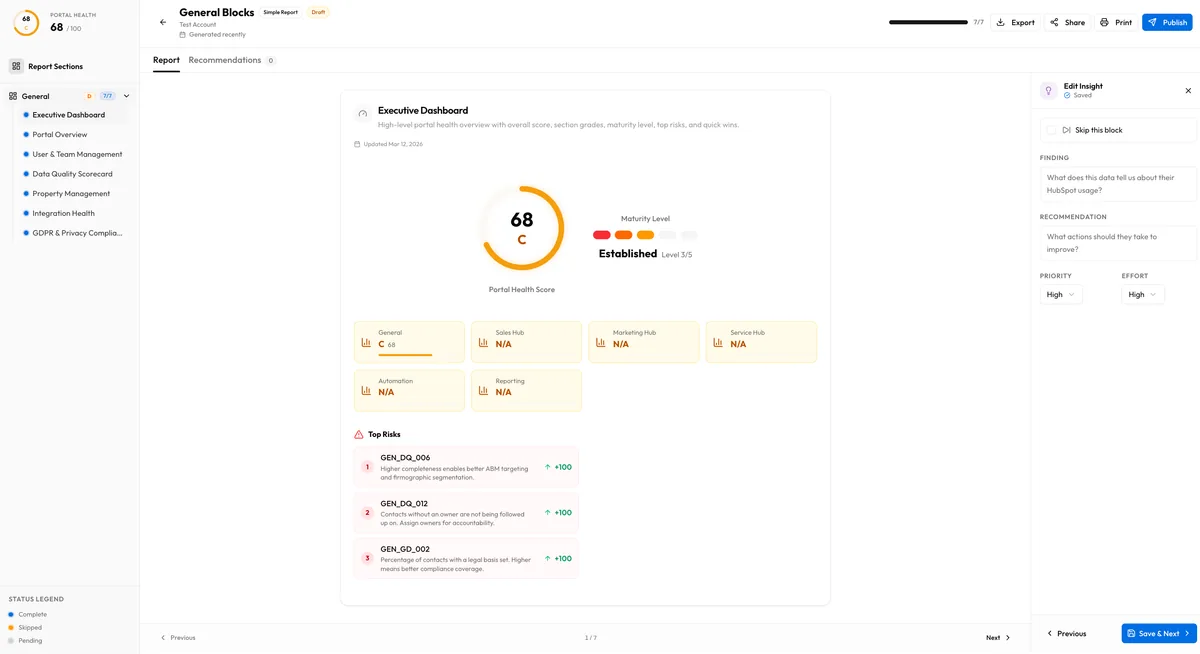
A report is organized into the following sections, from top to bottom:
Header
Section titled “Header”- Company branding — Your logo, colors, and optional client logo
- Portal name — The HubSpot portal that was audited
- Audit date — When the audit was run
- Portal score — The overall 0-100 score with letter grade
- Maturity level — The Level 1-5 designation
Executive Summary
Section titled “Executive Summary”If published, the AI-generated executive summary appears here with the top 3 strengths, top 3 critical issues, and top 3 quick wins. See Executive Summary for details.
Section Breakdown
Section titled “Section Breakdown”Each section (General, Sales, Marketing, Automation, Service, Reporting) gets its own area with:
- Section score — The aggregate score for this functional area
- Block cards — Each block within the section shows its score and, if published, its AI insight
Block Detail
Section titled “Block Detail”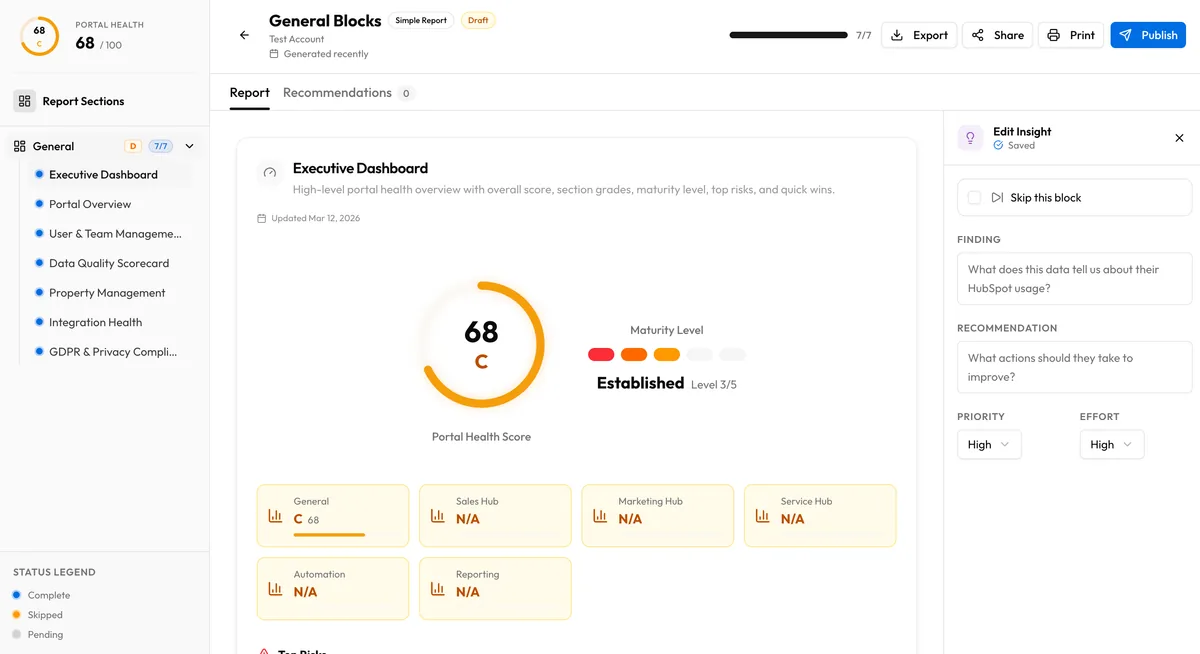
Within each section, blocks expand to show:
- Block score — The weighted average of its data points
- Data points — Each individual measurement with its raw value and score
- AI insight — The finding, recommendation, priority, and effort (if published)
Recommendations
Section titled “Recommendations”A prioritized list of recommended actions based on the audit findings. See Understanding Recommendations for how these are generated and organized.
Skipping Blocks
Section titled “Skipping Blocks”Not every block is relevant to every client or engagement. You can skip specific blocks to exclude them from the report:
- In the audit detail view, locate the block you want to skip.
- Click the Skip toggle on the block card.
- The block is removed from the report view and its score is excluded from the section and portal calculations.
Skipped blocks can be unskipped at any time to include them again.
View Count Tracking
Section titled “View Count Tracking”JetStack AI tracks how many times a shared report has been viewed. The view count appears in the audit detail panel next to the report link. This helps you understand client engagement:
- No views — The client may not have received the link or has not opened it yet
- Multiple views — The client is reviewing the report, possibly sharing it internally
View counts update in real time and include all visits to the shared report URL, both authenticated (your team) and unauthenticated (clients with the password).
Report Actions
Section titled “Report Actions”From the report view, you have access to several actions:
| Action | Description |
|---|---|
| Regenerate Insights | Re-run AI insight generation for specific blocks or the executive summary |
| Publish/Unpublish | Control which insights appear in the shared report |
| Skip/Unskip Blocks | Include or exclude blocks from the report |
| Update Password | Change the report access password |
| Copy Link | Copy the shareable report URL to your clipboard |
Report Freshness
Section titled “Report Freshness”Reports reflect the state of the audit at the time it was run. If the portal has changed since the audit, the report does not automatically update. To get current data, run a new audit on the same portal.