
Choosing a Portal
After selecting a template, the second step of the audit wizard is choosing which HubSpot portal to audit. Not every connected portal is eligible — only portals with the appropriate connection type appear in the selection list.
Portal Selection Dropdown
Section titled “Portal Selection Dropdown”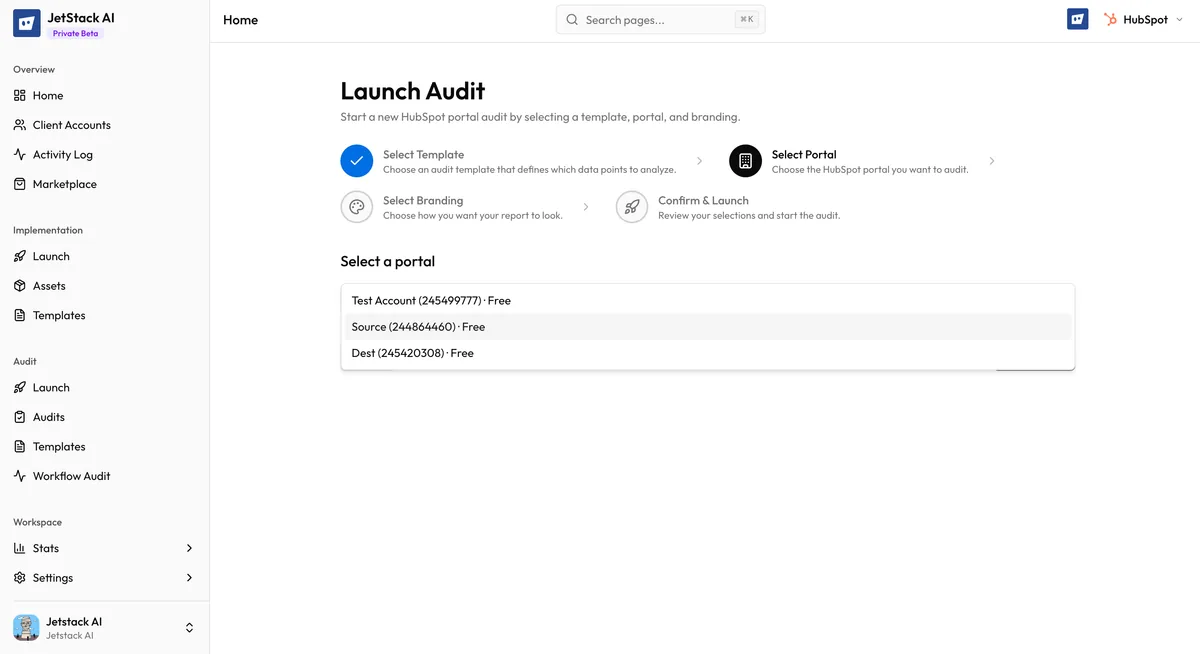
The portal selection screen displays a dropdown containing all audit-eligible portals connected to your JetStack AI organization. Each entry in the dropdown shows:
- Portal name — The name of the HubSpot portal as configured in your JetStack AI account
- Portal ID — The HubSpot portal identifier for reference
- Portal tier — The HubSpot subscription level (Free, Starter, Professional, Enterprise) which helps you confirm the portal has the Hub subscriptions required by your selected template
Select a portal from the dropdown to proceed.
Portal Eligibility
Section titled “Portal Eligibility”A portal must meet specific criteria to appear in the audit portal dropdown:
Connection Type
Section titled “Connection Type”When you connect a HubSpot portal to JetStack AI, you assign it a connection type that determines what operations are allowed. Only the following connection types enable auditing:
- config_and_audit — The portal can be used for both asset implementation (import/deploy) and audits. This is the most common configuration for client portals you manage end-to-end.
- audit — The portal is configured for auditing only. No import or deployment operations are permitted. Use this for portals where you only need read access for health checks.
Portals connected with the implementation connection type (import/deploy only) do not appear in the audit dropdown. If a portal you expect to audit is missing, check and update its connection type in Client Accounts.
Active Connection
Section titled “Active Connection”The portal must have an active, non-expired OAuth connection. If the OAuth token has expired or been revoked, the portal will either not appear in the dropdown or will appear with a warning indicator. Reconnect the portal before proceeding — see Reconnecting Portals.
Sufficient Permissions
Section titled “Sufficient Permissions”The HubSpot user account used to connect the portal must have sufficient permissions to read the data points included in the selected template. For best results, connect portals using a Super Admin account. If the connected account lacks permissions for specific data points, those points will fail during data capture and be excluded from scoring.
Portal Tier and Template Compatibility
Section titled “Portal Tier and Template Compatibility”The portal selection screen shows the portal’s HubSpot tier next to each entry. This is informational — JetStack AI does not block you from running an audit on a portal that may not have all the required Hub subscriptions. However, you should be aware of potential gaps:
| Template Focus | Recommended Portal Tier |
|---|---|
| Full Portal Audit | Professional or Enterprise (any Hub) |
| Marketing Health Check | Marketing Hub Professional+ |
| Sales Pipeline Review | Sales Hub Professional+ |
| Service Hub Assessment | Service Hub Professional+ |
| Automation Audit | Any Professional+ (Workflows require Professional) |
| Data Quality Review | Any tier (General blocks are available on all plans) |
If you run a template that includes blocks requiring a Hub the portal does not have, those blocks will produce empty results and be excluded from the final score calculation. The audit still completes, but the report will note which blocks could not be evaluated.
Selecting Your Portal
Section titled “Selecting Your Portal”Click the dropdown, select the portal you want to audit, and review the portal details displayed. Confirm this is the correct portal and that its tier aligns with your chosen template.
Click Next to proceed to Configuring Branding.
Troubleshooting
Section titled “Troubleshooting”Portal is not appearing in the dropdown:
- Verify the portal is connected to your organization in Client Accounts
- Check the connection type is set to
config_and_auditoraudit - Confirm the OAuth connection is active and not expired
- If the portal was recently connected, refresh the page
Portal shows a warning indicator:
- The OAuth token may be expired. Visit Reconnecting Portals to reauthorize
- The connected HubSpot user account may have had its permissions reduced. Reconnect with a Super Admin account
Wrong portal tier displayed:
- Portal tier information is cached. If the HubSpot subscription was recently upgraded, the tier may take up to 24 hours to update in JetStack AI. The audit will still use the portal’s actual current capabilities regardless of the displayed tier.
Next Steps
Section titled “Next Steps”- Configuring Branding — Step 3 of the wizard
- Adding Portals — Connect a new portal for auditing
- OAuth Connection — Understand portal authentication