
Configuring Branding
The third step of the audit wizard lets you apply custom branding to your audit report. This step is optional — you can skip it and the report will use JetStack AI’s default branding. Custom branding requires a Pro plan or above.
Why Brand Your Reports
Section titled “Why Brand Your Reports”Branded audit reports allow agencies and consultants to present portal health assessments under their own identity. Instead of delivering a report with JetStack AI branding, your clients receive a report featuring your agency’s logo, color scheme, and typography. This creates a more professional, white-labeled deliverable.
Common branding use cases:
- Agency client deliverables — Present audits as part of your agency’s service offering
- Internal assessments — Use your company’s branding for internal portal reviews
- Consulting engagements — Deliver branded reports as part of a paid audit service
- Sales proposals — Include a branded audit in your pitch to demonstrate portal health and recommended improvements
The Branding Selection Screen
Section titled “The Branding Selection Screen”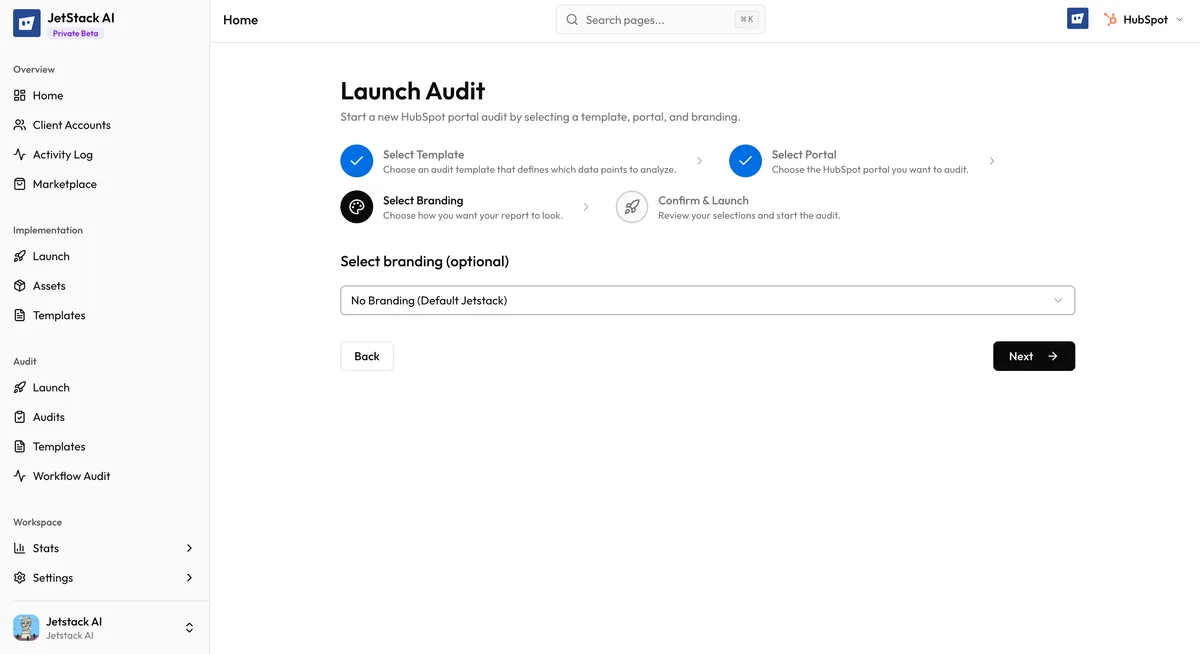
If you are on a Pro plan or above, the wizard’s third step displays a brand configuration selector. This shows all brand configurations that have been created for your organization.
Each brand configuration card displays:
- Brand name — The label you gave this configuration (e.g., “Agency Primary”, “Client Light Theme”)
- Logo preview — A thumbnail of the logo associated with this brand
- Color palette — A preview of the primary and secondary colors
- Font selection — The heading and body fonts configured
Select a brand configuration by clicking its card. The selected card is highlighted to confirm your choice.
Creating a New Brand Configuration
Section titled “Creating a New Brand Configuration”If you do not have any brand configurations yet, or you need a new one for this audit, click the “Create New Brand” link on the branding step. This opens the brand creation page at /brand/new in a new tab.
On the brand creation page, you configure:
- Logo — Upload your agency or company logo. Supported formats include PNG, SVG, and JPEG. The logo appears in the report header and cover page.
- Primary color — The main brand color used for headings, score indicators, and accent elements throughout the report.
- Secondary color — A complementary color used for backgrounds, borders, and secondary UI elements.
- Heading font — The typeface used for report section headings and the cover page title.
- Body font — The typeface used for paragraph text, data labels, and table content.
After saving the new brand configuration, return to the audit wizard tab. The branding step refreshes to include your newly created configuration.
For detailed guidance on creating and managing brand configurations, see Branding.
Skipping Branding
Section titled “Skipping Branding”If you do not need custom branding — for example, if this is an internal audit or a quick check — simply click Next without selecting a brand configuration. The audit report will use JetStack AI’s default styling, which includes neutral colors, standard typography, and the JetStack AI logo.
You can also skip branding if you are on a Starter plan. The branding step still appears in the wizard but the selection area displays a message indicating that custom branding requires a Pro plan upgrade.
Plan Requirements
Section titled “Plan Requirements”| Plan | Branding Capability |
|---|---|
| Starter | Default JetStack AI branding only. Branding step is visible but non-functional. |
| Pro | Full custom branding. Create unlimited brand configurations. |
| Enterprise | Full custom branding plus custom domain support for report hosting. |
Custom domains (hosting reports on reports.youragency.com instead of the default JetStack AI URL) are configured separately from brand configurations. See Custom Domains for setup instructions.
Branding and Report Consistency
Section titled “Branding and Report Consistency”The brand configuration you select is applied at the time the report is generated. If you later update the brand configuration (change the logo, adjust colors), existing reports are not retroactively updated. Only new audits using that brand configuration will reflect the changes.
If you need to regenerate a report with updated branding, you can re-run the audit with the updated brand configuration.
Next Steps
Section titled “Next Steps”- Launching and Monitoring — Step 4 of the wizard: confirm and launch
- Branding Settings — Manage all brand configurations
- Custom Domains — Host reports on your own domain
- Report Branding — How branding appears in the final report