
Progress States
Every audit moves through a sequence of states from creation to completion (or failure). Understanding these states helps you interpret audit progress, troubleshoot stalled audits, and communicate status to your team or clients.
State Overview
Section titled “State Overview”An audit will be in one of the following five states at any given time:
| State | Description | Typical Duration |
|---|---|---|
| CREATED | Audit has been queued and is waiting for processing to begin | Seconds |
| PENDING_DATA_CAPTURE | Audit requires extension data before it can proceed | Until user action |
| PROCESSING | Audit is actively retrieving data, scoring, and generating insights | 2-15 minutes |
| COMPLETED | Audit has finished successfully and the report is available | Terminal state |
| FAILED | Audit encountered a fatal error and could not complete | Terminal state |
State Details
Section titled “State Details”CREATED
Section titled “CREATED”What it means: The audit has been successfully created and added to the processing queue. No data retrieval has started yet.
When you see this: Immediately after clicking the Launch button in the audit wizard. The audit remains in this state for a few seconds while the backend queues the job.
What to expect: The audit transitions to either PENDING_DATA_CAPTURE or PROCESSING within a few seconds. No action is required on your part.
If the audit stays in CREATED for more than a minute: This may indicate a backend processing delay. Wait a few more minutes. If the state does not change, try refreshing the page. If it persists, contact support.
PENDING_DATA_CAPTURE
Section titled “PENDING_DATA_CAPTURE”What it means: The audit template includes data points that require the JetStack AI browser extension to capture data from HubSpot’s internal APIs. The audit cannot proceed until this data is provided.
When you see this: After the audit transitions from CREATED, but only if the selected template includes extension-dependent data points. Templates that rely exclusively on standard HubSpot API data skip this state entirely.
What is displayed:
- A clear message explaining that extension data capture is needed
- Step-by-step instructions for completing the capture:
- Open HubSpot in your browser with the JetStack AI extension installed
- Navigate to the target portal
- Click the JetStack AI extension icon
- Select the audit from the pending captures list
- Confirm the data capture
- A link to the extension installation page if the extension is not yet installed
- A link to Extension Troubleshooting if you encounter issues
What to expect: Once the extension submits the captured data, the audit automatically resumes and transitions to PROCESSING. You do not need to return to the audit page to trigger this — the transition happens on the server side.
Timeout behavior: If extension data is not provided within 24 hours, the audit will proceed without it. Extension-dependent data points are marked as unavailable and excluded from scoring. The rest of the audit runs normally.
PROCESSING
Section titled “PROCESSING”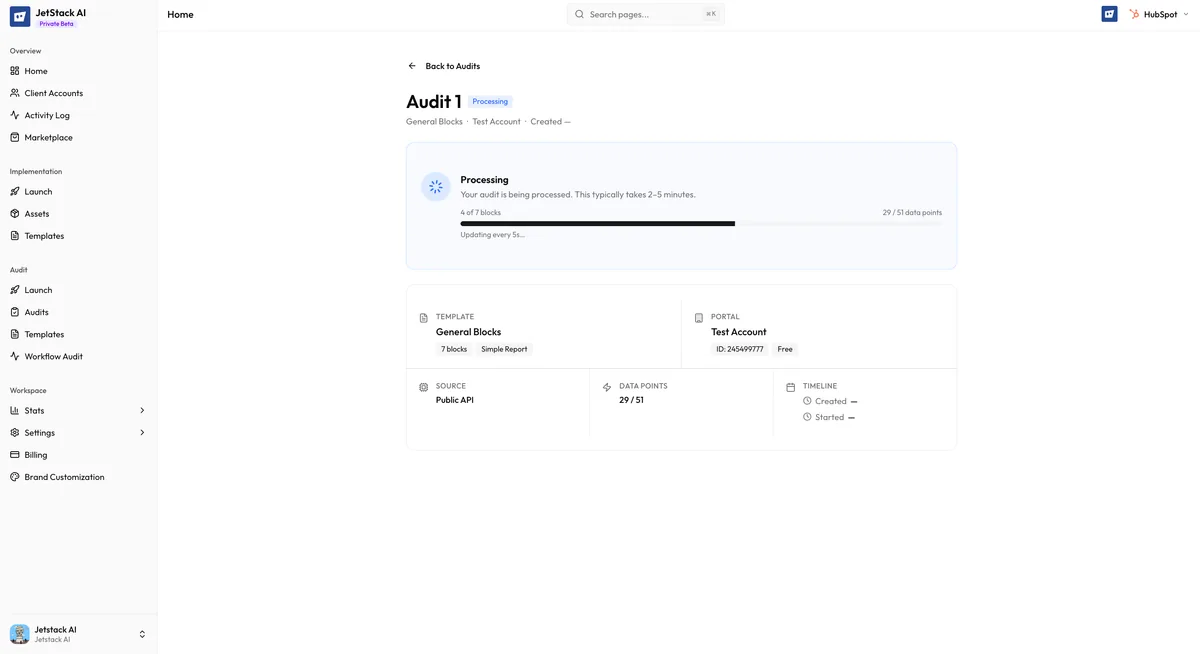
What it means: The audit engine is actively working. This encompasses data retrieval from the HubSpot API, data analysis, scoring against benchmarks, AI insight generation, and report assembly.
When you see this: After the audit transitions from CREATED (or PENDING_DATA_CAPTURE if extension data was needed).
What is displayed:
- Progress bar — Shows completion percentage, updated every 5 seconds via auto-polling
- Current block label — The name of the block currently being analyzed (e.g., “Email Marketing”, “Deal Pipeline”, “Workflow Health”)
- Elapsed time — Time since processing started
- Estimated remaining time — Based on the template mode and current progress
Processing phases in order:
- Data retrieval from HubSpot API (bulk of the time for Full mode audits)
- Data point evaluation and scoring
- Block-level AI insight generation (one API call per block)
- Section and portal score aggregation
- Executive summary generation
- Report rendering and URL generation
What to expect: Processing completes in 2-5 minutes for Quick mode templates and 5-15 minutes for Full mode templates. The time depends on the number of blocks, the volume of data in the portal, and HubSpot API response times.
If processing seems stuck: The progress bar updates every 5 seconds. If it has not moved for more than 2 minutes, the audit may have encountered a transient issue. Wait a few more minutes. If no progress after 5 minutes of no movement, the audit may transition to FAILED with an error message.
COMPLETED
Section titled “COMPLETED”What it means: The audit has finished successfully. All data points have been captured, scored, and analyzed. The branded report has been generated and is ready to view.
When you see this: After the PROCESSING state finishes without errors.
What is displayed:
- Completion confirmation with a check indicator
- Overall portal health score as a prominent number/grade
- Section score summary showing scores for each of the six sections
- Recommendation count — How many AI-generated recommendations were produced
- “View Report” button — Links to the full branded report
- “Share Report” button — Opens sharing options (link, password protection)
What you can do:
- View the full report
- Share the report with clients or stakeholders
- Download the report (if available)
- Run a new audit on the same portal to compare changes over time
- Access this audit at any time from your Audits list
FAILED
Section titled “FAILED”What it means: The audit encountered a fatal error during processing and could not be completed. No report was generated.
When you see this: If a critical error occurs during any processing phase.
What is displayed:
- Error category — A high-level classification of the failure (e.g., “Authentication Error”, “API Rate Limit”, “Data Retrieval Error”)
- Error details — A specific message describing what went wrong
- Troubleshooting links — Direct links to relevant documentation for the error type
- Retry button — Relaunches the same audit configuration without requiring you to re-enter the wizard
Common failure causes and resolutions:
| Error | Cause | Resolution |
|---|---|---|
| Authentication Error | OAuth token expired or revoked | Reconnect the portal |
| API Rate Limit | HubSpot API rate limit exceeded | Wait 10-15 minutes, then retry |
| Insufficient Permissions | Connected account lacks required scopes | Reconnect with a Super Admin account |
| Data Retrieval Error | HubSpot API returned an unexpected error | Retry; if persistent, check HubSpot Status |
| Internal Error | JetStack AI processing error | Retry; if persistent, contact support |
Retry behavior: Clicking Retry creates a new audit with the same template, portal, and branding configuration. The new audit starts fresh from the CREATED state. Previous failed audit data is not reused.
State Transition Diagram
Section titled “State Transition Diagram”The normal flow is:
CREATED -> PROCESSING -> COMPLETEDWith extension data points:
CREATED -> PENDING_DATA_CAPTURE -> PROCESSING -> COMPLETEDFailure can occur from any active state:
CREATED -> FAILEDPENDING_DATA_CAPTURE -> FAILED (timeout or critical error)PROCESSING -> FAILEDNext Steps
Section titled “Next Steps”- Launching and Monitoring — The full launch and monitoring experience
- Troubleshooting Audit Failures — Detailed resolution steps for each error type
- Extension Tasks — How the extension handles data capture requests