
Selecting a Template
The first step when running an audit is selecting a template. The template determines which of the 28 analysis blocks and 450+ data points are included, whether the audit runs in Quick or Full mode, and what the resulting report will focus on.
Opening the Audit Wizard
Section titled “Opening the Audit Wizard”Navigate to Audits > New Audit from the main sidebar. This opens the four-step audit wizard. The template selection screen is displayed first.
The Template Grid
Section titled “The Template Grid”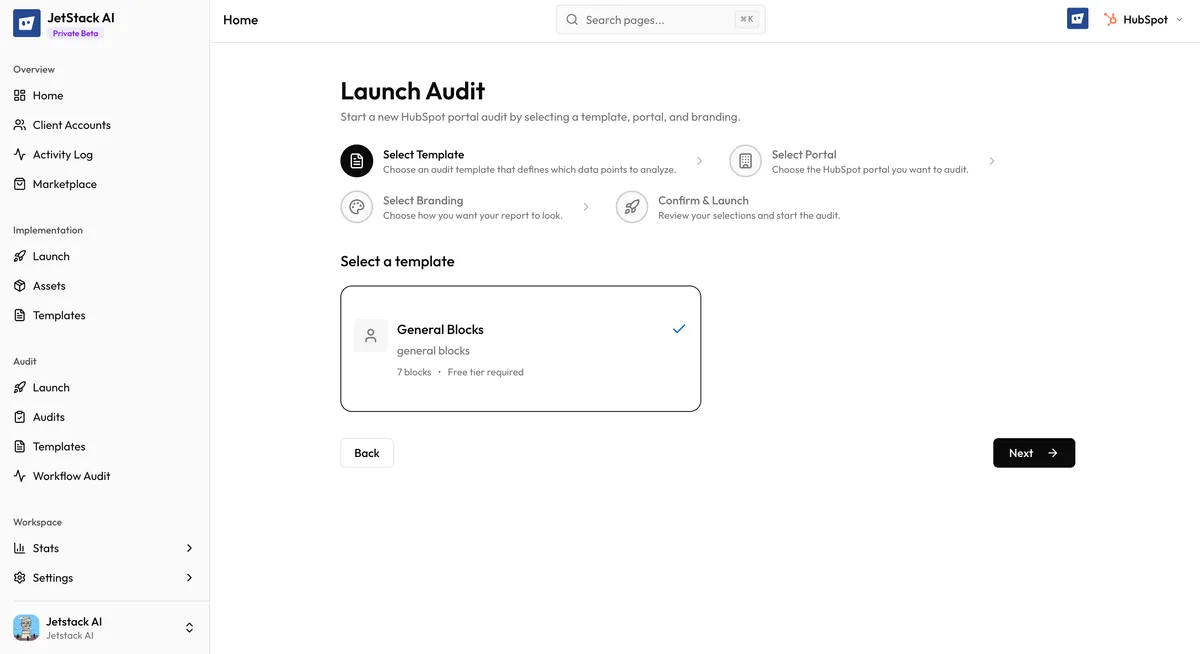
Templates are displayed in a card grid layout. Each template card shows:
- Template name — A clear label describing the audit focus (e.g., “Full Portal Audit”, “Marketing Health Check”, “Sales Pipeline Review”)
- Description — A brief summary of what the template evaluates and the intended use case
- Requirements — Any prerequisites for using the template, such as specific HubSpot Hub subscriptions (Marketing Hub Professional, Sales Hub Enterprise, etc.) or the JetStack AI browser extension
- Mode indicator — Whether the template runs in Quick mode (current data, 2-5 minutes) or Full mode (with historical trends, 5-15 minutes)
- Block count — How many of the 28 available blocks are included
Filtering Templates
Section titled “Filtering Templates”If you have many templates available, use the tier filter to narrow the list. Tier filtering lets you show only templates that match your current plan level or a specific HubSpot subscription tier. This prevents selecting a template that requires data points your portal cannot provide.
Available filter options include:
- All templates — Show everything available to your organization
- By plan tier — Filter to templates compatible with your JetStack AI plan (Starter, Pro, Enterprise)
- By HubSpot tier — Filter to templates designed for specific HubSpot subscription levels
Pre-Built Templates
Section titled “Pre-Built Templates”JetStack AI ships with several pre-built templates covering common audit scenarios:
- Full Portal Audit — All 28 blocks across all six sections. The most comprehensive option. Runs in Full mode with historical data.
- Marketing Health Check — Focuses on the 6 Marketing Hub blocks plus relevant General blocks (data quality, properties). Quick mode.
- Sales Pipeline Review — Covers the 5 Sales Hub blocks plus Deal Pipeline and Lead Management. Quick mode.
- Service Hub Assessment — All 4 Service Hub blocks plus Ticket Pipeline and Resolution Metrics. Quick mode.
- Automation Audit — The 3 Automation blocks plus related Workflow and Sequence data. Quick mode.
- Data Quality Review — Focuses on General blocks: Data Quality, Property Management, and User Management. Quick mode.
Pre-built templates cannot be edited, but you can duplicate them to create a custom version with your preferred configuration.
Custom Templates
Section titled “Custom Templates”If none of the pre-built templates match your needs, you can create custom templates that include exactly the blocks and data points you want. Custom templates are managed separately — see Creating Templates for the full guide.
Custom templates you have created or that your organization has shared appear in the same grid alongside pre-built templates. They are visually distinguished with a “Custom” badge.
Selecting a Template
Section titled “Selecting a Template”Click on a template card to select it. The selected card receives a visual highlight to confirm your choice. You can change your selection at any time before proceeding by clicking a different card.
Once you are satisfied with your template choice, click Next to proceed to Choosing a Portal.
Things to Consider
Section titled “Things to Consider”- Portal Hub subscriptions matter. A template that includes Sales Hub blocks will produce incomplete results if the target portal does not have Sales Hub. Check the template requirements against your portal’s subscription.
- Extension data points are optional. If a template includes blocks that rely on extension data capture but you do not have the extension installed, those data points are skipped and excluded from scoring. The rest of the audit runs normally.
- Full mode takes longer. If you need results quickly (e.g., during a live client call), choose a Quick mode template or create a custom template with only the blocks you need.
- Template selection cannot be changed after launch. Once you start the audit, the template is locked. If you need a different set of blocks, you must run a new audit with a different template.
Next Steps
Section titled “Next Steps”- Choosing a Portal — Step 2 of the wizard
- Pre-Built Templates — Detailed breakdown of each pre-built template
- Creating Templates — Build your own custom audit template