
Browsing the Marketplace
The Marketplace provides a structured browsing experience that helps you find implementation modules and audit templates quickly. This page covers the home page layout, search and filtering tools, and how to read module and template cards.
Home Page Layout
Section titled “Home Page Layout”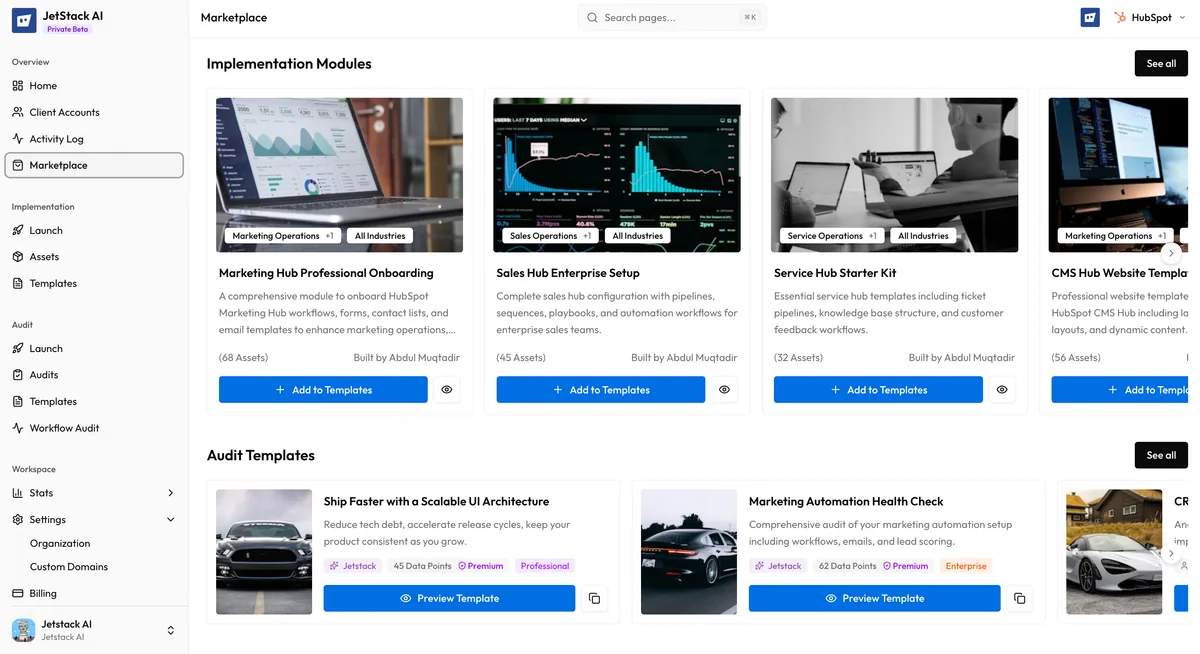
When you open the Marketplace, the home page presents two featured sections followed by full catalog access:
Featured Modules
Section titled “Featured Modules”The top section displays a horizontal scroll row of highlighted implementation modules. These are hand-picked based on popularity, recent additions, and seasonal relevance. Scroll left and right to browse, or click Browse All Modules to view the complete module catalog.
Featured Templates
Section titled “Featured Templates”Below the modules row, a second horizontal scroll row showcases featured audit templates. These highlight the most commonly used audit configurations across different hub focus areas. Click Browse All Templates to access the full template list.
Browse All Links
Section titled “Browse All Links”Each featured row includes a Browse All link that takes you to the full catalog view for that content type. The catalog views support the full range of search and filtering tools described below.
Searching
Section titled “Searching”Both the module catalog and the template catalog include a search bar at the top of the page. Search matches against:
- Name — The module or template title
- Description — The summary text describing what the module or template does
- Tags — Category and industry tags attached to each item
- Asset types — For modules, search by included asset types (e.g., “workflow,” “pipeline,” “form”)
Results update in real time as you type. Clear the search field to return to the default browsing view.
Category Filters
Section titled “Category Filters”Use category filters to narrow results by operational focus:
Module Categories
Section titled “Module Categories”| Category | Description |
|---|---|
| Sales Operations | Deal pipelines, lead routing, sales sequences, and forecasting workflows |
| Marketing Operations | Campaign automation, lead scoring, nurture sequences, and form strategies |
| Service Operations | Ticketing pipelines, SLA workflows, feedback loops, and knowledge base setups |
| Revenue Operations | Cross-functional reporting, lifecycle stage management, and attribution models |
Template Categories
Section titled “Template Categories”| Category | Description |
|---|---|
| Full Portal Audit | Comprehensive scan across all hubs and asset types |
| Sales Hub Focus | Targeted scan of deals, pipelines, sequences, and sales workflows |
| Marketing Hub Focus | Targeted scan of campaigns, emails, forms, and marketing workflows |
| Service Hub Focus | Targeted scan of tickets, feedback, and service workflows |
| CMS Hub Focus | Targeted scan of pages, templates, blog content, and HubDB tables |
Select one or more categories to filter the visible results. Active filters display as chips above the results grid; click a chip to remove it.
Industry Tags
Section titled “Industry Tags”Implementation modules can carry industry-specific tags that indicate the vertical they were designed for. Available industry tags include:
- SaaS — Subscription-based software companies
- Healthcare — Medical practices, health tech, and HIPAA-sensitive workflows
- FinTech — Financial services, lending, and payment platforms
- Manufacturing — Production pipelines, distributor management, and supply chain ops
- Professional Services — Consulting firms, agencies, and managed service providers
- E-Commerce — Online retail, product catalogs, and order management
- Real Estate — Property management, agent workflows, and listing pipelines
- Education — Enrollment funnels, student lifecycle, and institutional outreach
Select an industry tag to see only the modules designed for that vertical. Industry tags can be combined with category filters for precise results.
Module Cards
Section titled “Module Cards”Each module appears as a card in the browse view. A module card displays:
- Module name — The title of the module
- Category badge — The operational category (Sales, Marketing, Service, or Revenue Operations)
- Industry tags — One or more industry labels, if applicable
- Asset count — The total number of HubSpot assets included in the module
- Short description — A one-to-two sentence summary of what the module does
- Install button — Click to begin the installation flow
Clicking anywhere on the card (outside the install button) opens the module detail page with the full description, asset list, best practices, and inclusions.
Template Cards
Section titled “Template Cards”Each audit template appears as a card showing:
- Template name — The title of the template
- Hub focus badge — The hub area the template targets
- Block count — The number of audit blocks included
- Short description — A summary of what the template scans
- Use Template button — Click to launch the audit wizard with this template pre-selected
Clicking the card opens a detail view with the full list of included blocks and their descriptions.
Next Steps
Section titled “Next Steps”- Implementation Modules — Learn what modules contain and how to install them
- Audit Templates — Understand template structure and how to launch audits from templates