
Sharing Reports
Sharing is the primary way you deliver audit findings to your clients. JetStack AI provides URL-based sharing with password protection, giving you control over who can access the report.
How Sharing Works
Section titled “How Sharing Works”Every audit report gets a unique, shareable URL. The link format is:
dashboard.jetstack.ai/r/{accessPath}
The accessPath is a unique identifier generated for each audit. It is not guessable — it contains enough entropy to prevent URL enumeration.
When someone visits this URL:
- They are prompted to enter the report password.
- After entering the correct password, they gain access to the full report.
- The view is counted and visible in your dashboard.
No account creation or login is required for clients. They only need the URL and the password.
Sharing a Report
Section titled “Sharing a Report”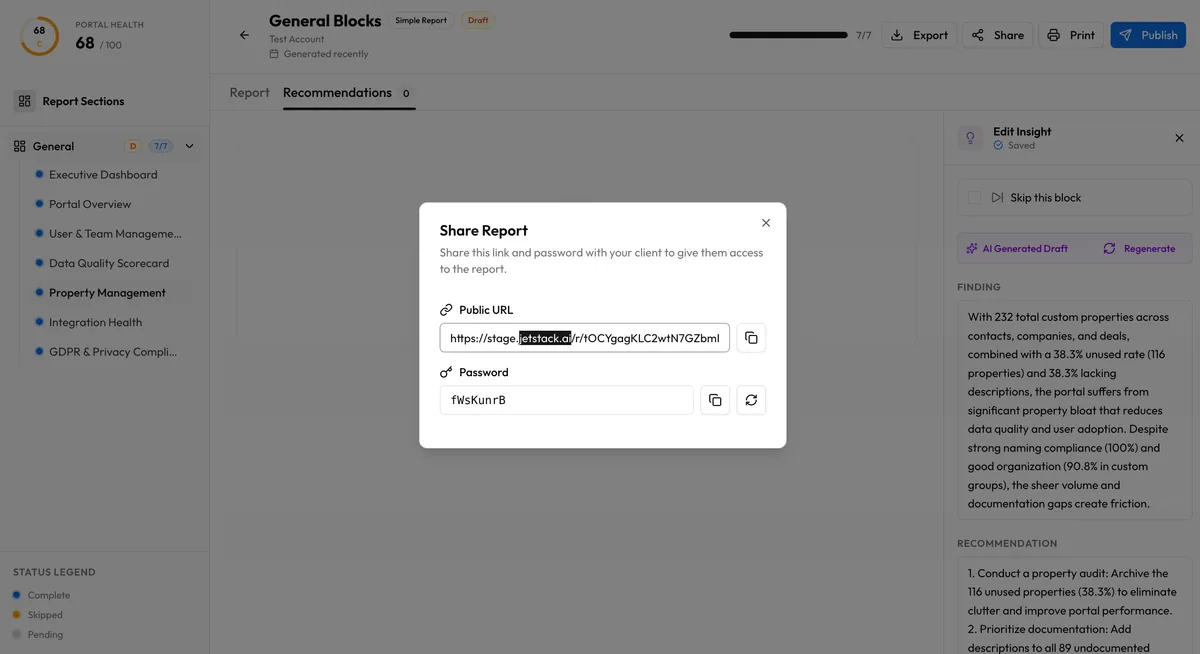
- Open the audit you want to share from the Audits list.
- Ensure all desired AI insights are published (see Publishing).
- Review the report to confirm the content, branding, and structure are ready.
- Click Copy Link to copy the report URL to your clipboard.
- Send the URL and password to your client via email, Slack, or your preferred channel.
The password is auto-generated when the audit is created. You can view it in the audit settings panel and change it at any time. See Password Protection.
Before You Share: Pre-Share Checklist
Section titled “Before You Share: Pre-Share Checklist”Before sending the link, verify:
- Branding is configured — Your company logo, colors, and optionally the client’s logo are set. See Branding.
- Insights are published — Review and publish the AI insights you want clients to see. Unpublished insights are invisible in the shared report.
- Blocks are curated — Skip any blocks that are not relevant to this client or engagement.
- Executive summary is published — This is the first substantive content clients read.
- Password is noted — You will need to provide the password alongside the link.
Tracking Engagement
Section titled “Tracking Engagement”After sharing, you can monitor client engagement through view count tracking:
- View count — Visible in the audit detail panel, updated in real time
- Each visit to the shared URL (after successful password entry) increments the count
- Both your team’s views and client views are counted
There is no breakdown by visitor. The view count is a simple total. If you need to distinguish your own views from client views, check the count before sharing and note the difference.
Sharing with Multiple Stakeholders
Section titled “Sharing with Multiple Stakeholders”You can share the same URL and password with multiple people on the client side. There is no limit on simultaneous viewers. Common scenarios:
- Client champion — Your primary contact who reviews the full report
- Executive sponsor — Shares the link with leadership, who may focus on the executive summary and scores
- Technical team — Reviews specific sections and data point details
All viewers see the same report with the same published insights.
Revoking Access
Section titled “Revoking Access”To revoke access to a shared report:
- Change the password — Anyone who previously had access will be unable to view the report until they receive the new password. Existing sessions are not terminated, but new visits require the updated password.
- Unpublish insights — Remove specific content from the report without changing access. The report remains accessible but with less content.
There is no “disable sharing” toggle. If you need to fully prevent access, change the password to something only your team knows.
Custom Domain Sharing
Section titled “Custom Domain Sharing”On the Ultimate plan, you can configure a custom subdomain for report URLs. Instead of dashboard.jetstack.ai/r/{accessPath}, your clients see:
{subdomain}.client-reports.jetstack.ai/r/{accessPath}
This reinforces your brand and removes the JetStack AI domain from the client-facing URL. See Custom Domains for setup.
Best Practices
Section titled “Best Practices”- Share after a review call — Walk clients through the report live before sending the link for independent review.
- Include context in your email — Do not just send a bare link. Add a brief summary of what they will find and which sections to focus on.
- Follow up after views — If the view count shows the client has reviewed the report, follow up to discuss findings and next steps.
- Keep passwords simple — Clients will need to type the password. Avoid overly complex passwords that frustrate access.