
Running a Workflow Audit
Running a workflow audit follows a similar process to launching a portal audit, but with workflow-specific configuration options. This page walks through the complete process from launch to completion.
Prerequisites
Section titled “Prerequisites”Before running a workflow audit, ensure:
- A portal is connected — The HubSpot portal you want to audit must be connected via OAuth with appropriate permissions. See Connecting Your First Portal.
- Workflows exist — The portal should have at least a few workflows to analyze. A workflow audit on a portal with no workflows will complete immediately with no findings.
- Your plan supports workflow audits — Check Plans and Limits to confirm workflow audits are included in your tier.
Launching a Workflow Audit
Section titled “Launching a Workflow Audit”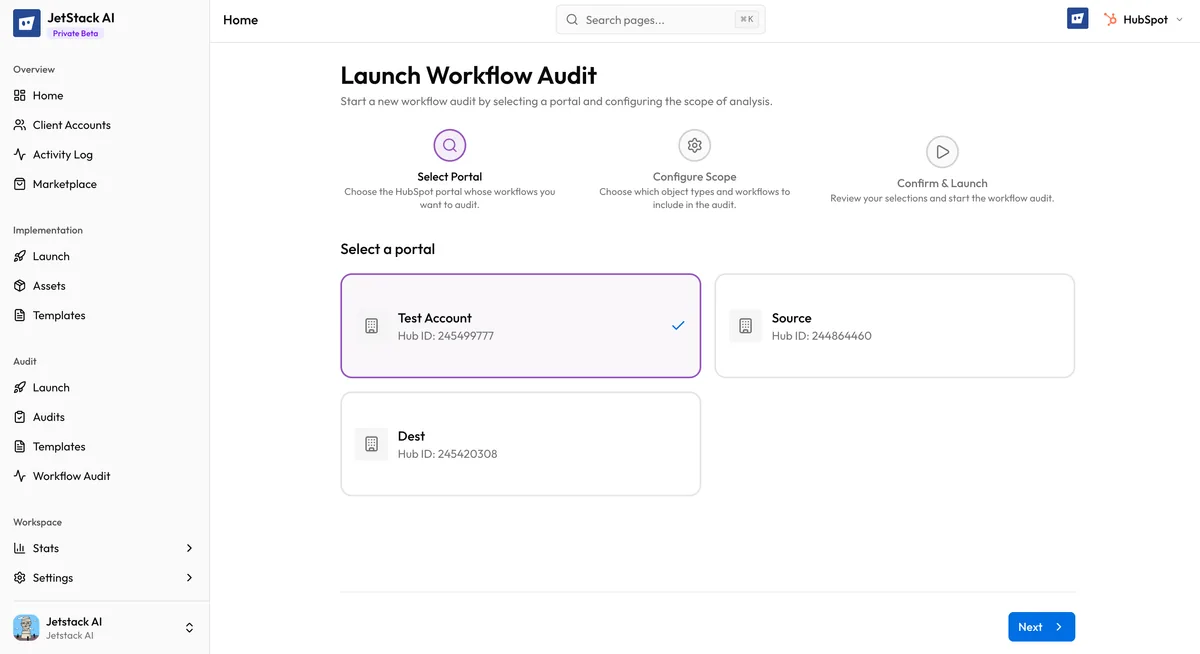
Step 1: Navigate to Workflow Audits
Section titled “Step 1: Navigate to Workflow Audits”- Go to Audits in the sidebar.
- Select Workflow Audit from the audit type options.
Step 2: Select the Portal
Section titled “Step 2: Select the Portal”Choose the connected HubSpot portal you want to audit from the portal dropdown. Only portals with active OAuth connections appear in the list.
If the portal you need is not listed:
- Check that it is connected in Client Accounts
- Verify the connection status is active (not expired or disconnected)
- Reconnect if necessary (see Reconnecting a Portal)
Step 3: Configure Options
Section titled “Step 3: Configure Options”Workflow audits have the following configuration options:
| Option | Description | Default |
|---|---|---|
| Include inactive workflows | Whether to analyze workflows that are currently turned off | Yes |
| Conflict detection depth | How many levels of workflow-to-workflow connections to trace | 3 |
| Generate AI insights | Whether to generate AI-powered findings and recommendations | Yes |
Include inactive workflows is recommended because inactive workflows can still be relevant — they may be reactivated, and their configuration can reveal patterns and potential issues.
Conflict detection depth controls how far the graph builder traces dependencies. A depth of 3 means it follows connections up to 3 levels deep (A triggers B, B triggers C, C triggers D). Increase this for portals with deeply chained workflows. Decrease it for faster processing on portals with many workflows.
Step 4: Launch
Section titled “Step 4: Launch”Click Start Workflow Audit. The audit begins processing immediately.
Monitoring Progress
Section titled “Monitoring Progress”After launching, you can monitor the workflow audit’s progress in real time:
Processing Phases
Section titled “Processing Phases”The audit progresses through these phases:
| Phase | Description | Typical Duration |
|---|---|---|
| Fetching | Retrieving all workflows from HubSpot | 10-60 seconds |
| Building Graph | Constructing the dependency graph | 5-30 seconds |
| Detecting Conflicts | Analyzing the graph for conflicts | 10-60 seconds |
| Scoring | Calculating health scores for each workflow | 5-20 seconds |
| Generating Insights | Producing AI-powered findings (if enabled) | 1-3 minutes |
| Complete | All processing finished | — |
Total time depends on the number of workflows. A portal with 20 workflows typically completes in under 2 minutes. A portal with 200+ workflows may take 5-10 minutes.
Status Indicators
Section titled “Status Indicators”The audit detail view shows:
- Current phase — Which processing step is active
- Progress bar — Visual indication of overall completion
- Workflow count — How many workflows were fetched
- Conflict count — Running count of detected conflicts (updates as detection progresses)
What Happens During Processing
Section titled “What Happens During Processing”Fetching
Section titled “Fetching”JetStack AI calls the HubSpot API to retrieve all workflow definitions. This includes:
- Active and inactive workflows (if configured)
- Full workflow configuration — triggers, actions, branches, filters
- Workflow metadata — name, creation date, last modified, creator
The fetcher respects HubSpot API rate limits and pages through results automatically.
Graph Building
Section titled “Graph Building”The graph builder analyzes all fetched workflows to construct a dependency graph:
- Maps enrollment triggers to identify shared criteria
- Identifies “enroll in workflow” actions that create workflow-to-workflow connections
- Tags shared resources (lists, properties, pipeline stages) used across multiple workflows
- Builds the complete relationship map used by the conflict detector
Conflict Detection
Section titled “Conflict Detection”The conflict detector walks the dependency graph to identify issues:
- Traces paths through the graph up to the configured depth
- Evaluates each pair of connected workflows for conflicting actions
- Checks for circular dependencies
- Identifies suppression gaps where contacts could be processed by conflicting workflows
- Rates each conflict by severity
Scoring
Section titled “Scoring”Each workflow receives a health score based on:
- Configuration completeness
- Best practice adherence
- Presence of known antipatterns
- Conflict involvement
AI Insight Generation
Section titled “AI Insight Generation”If enabled, Claude Haiku generates natural-language insights for:
- The overall workflow ecosystem
- Individual workflows with notable findings
- Each detected conflict
- Prioritized recommendations
After Completion
Section titled “After Completion”When the audit finishes, navigate to Understanding Results for a detailed guide on interpreting the findings, resolving conflicts, and improving workflow health scores.
Re-Running a Workflow Audit
Section titled “Re-Running a Workflow Audit”You can run a new workflow audit on the same portal at any time. Each run is independent — previous results are preserved and available for comparison. Run new audits after making changes to workflows to verify improvements.